Getting started
Installing the GIS add-on for Archicad 23-30 (Windows, macOS), activating the license with a code, the educational license and your first data import.
Updated: 2026-10-18 · add-on 2.1.0
Quick start #
Archinaut is an add-on for Archicad 23-30 on Windows and macOS. It downloads Polish spatial data (parcels, buildings, utility networks, terrain and more) and places it in your project. Getting from download to your first import takes six steps.
- Log in at archinaut.pl and download the package for your Archicad version - details in the installation section.
- Unpack the archive and add the add-on to Archicad (on macOS you also need a short step in Terminal) - Windows, macOS.
- Open the palette from the menu Archinaut › GIS Import › Mapa importu GIS (Map of GIS import).
- Click Otwórz archinaut.pl/aktywuj (Open archinaut.pl/aktywuj) in the palette (the page opens with the code already filled in) and confirm your computer - license activation.
- Find your parcel on the map (type an address), set the view so that the frame covers the area you need, and click 📍 Ustaw lokalizację (Set location). Do this before 2. Dodaj do projektu (2. Add to project), because without georeferencing the import will fail - frame and project location.
- Tick the layers (Działki - parcels, Budynki - buildings and Podkład EGiB - the EGiB base map are ticked by default), click 1. Pobierz (1. Download), then 2. Dodaj do projektu (2. Add to project) - downloading and placing.
One Undo (Ctrl+Z) in Archicad reverts the whole import, so your first attempts cannot break anything.
Installation on Windows #
You need 64-bit Windows and Archicad version 23, 24, 25, 26, 27, 28, 29 or 30. There is a separate package for each version - a package from another version will not load.
- Log in at archinaut.pl. In your account, in the download section, choose the system Windows and the button with your Archicad version (26, 27, 28, 29 or 30; the older versions 23, 24 and 25 are in a separate row). You can download even without an active license.
- Unpack the downloaded
.ziparchive. Inside is the add-on file.apx. - In Archicad choose Options › Add-On Manager › Add and point to the
.apxfile. - When the add-on status changes to Loaded, Archinaut › GIS Import appears in the Archicad menu.
- Open Mapa importu GIS (Map of GIS import) and activate the license - see license activation.
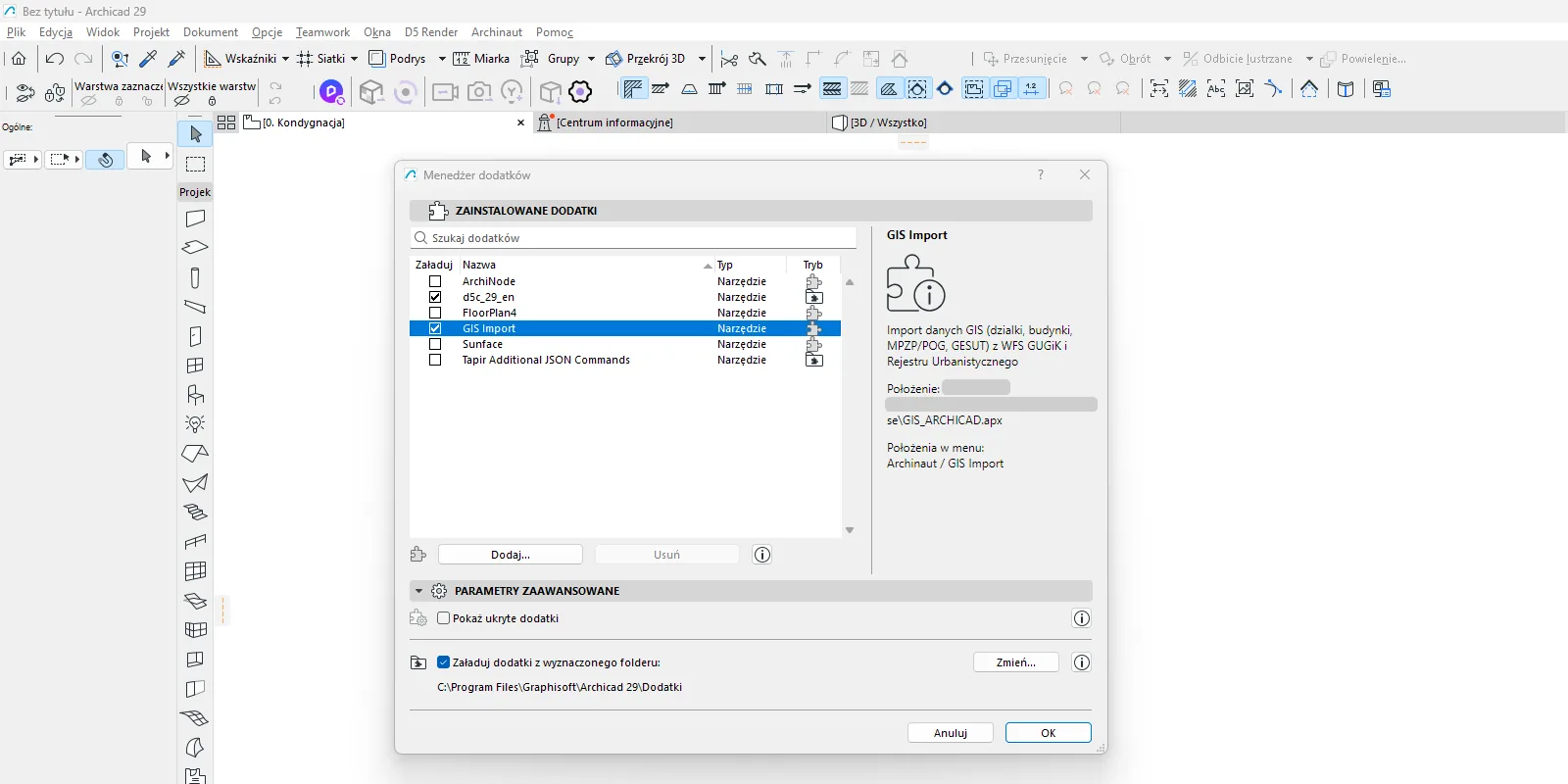
Without an active license the add-on shows only the activation screen, the license status and the settings. It will not run an import.
Installation on macOS #
The macOS add-on is not signed with Apple. The system will block it until you do the steps below. The package is universal (Apple Silicon and Intel), but it must match your Archicad version. Exception: for Archicad 23-25 the add-on is the Intel (x86_64) build - on a Mac with an Apple processor it works when Archicad runs under Rosetta.
- Log in at archinaut.pl, download the macOS package for your Archicad version and unpack the
.zip. Inside is the packageGIS_ARCHICAD.bundle. - Open Terminal (Applications › Utilities › Terminal) and type in order:
cd ~/Downloads
sudo xattr -rc GIS_ARCHICAD.bundle
codesign --force --deep -s - GIS_ARCHICAD.bundle- After the command with
sudothe Mac asks for your password. Nothing is displayed while you type - this is normal. No message after the commands means that it worked. - If the package is in a folder other than Downloads, change the first line. You can complete the file name with the Tab key after typing
GIS_. - Move
GIS_ARCHICAD.bundleto the Archicad Add-Ons folder and start the program. Do not open the package by double-clicking in Finder, because it triggers the macOS security block window. Archicad loads the add-on itself. - The palette appears in the menu Archinaut › GIS Import. Then activate the license - see license activation.
Without sudo you may see the error “Permission denied”. You will also find the full instructions on the page https://archinaut.pl/mac.html, and typical Mac problems in the section problems on macOS.
For the curious
The first command (xattr) removes the quarantine flag that the system gives to files downloaded from the internet. The second (codesign with an ad-hoc signature) gives the package a local signature. On Apple Silicon, the system blocks unsigned code. Once the add-on gets an Apple signature and notarization, this step is meant to disappear.
License activation #
You link the license to your computer with a one-time code. You do not type any license key.
- Open the palette Mapa importu GIS (Map of GIS import). On the first start without a license you will see the overlay Aktywuj Archinaut (Activate Archinaut) with a code in large type. The add-on asks the server for the code itself.
- Click Otwórz archinaut.pl/aktywuj (Open archinaut.pl/aktywuj). The page opens with the code already typed in the field. You can also click KOPIUJ (COPY) and paste the code by hand.
- Log in or create an account at archinaut.pl. The code has the format
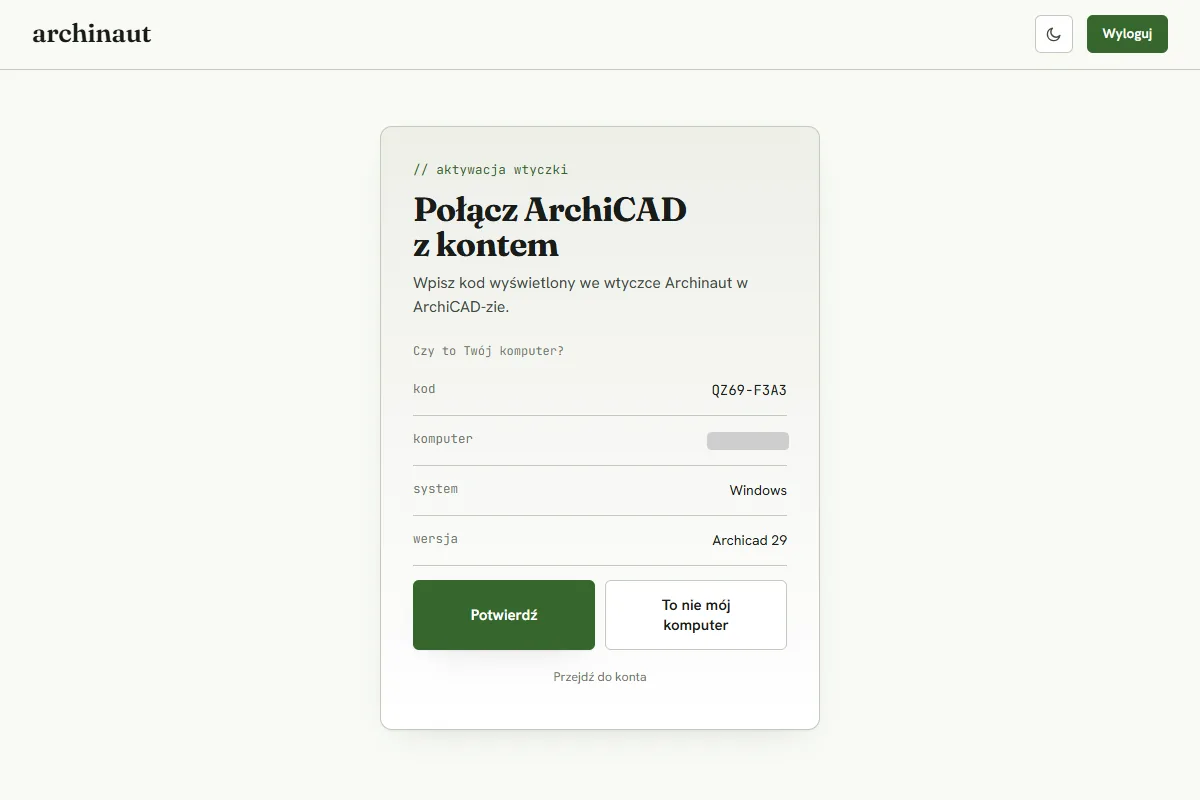
XXXX-XXXX(letters and digits, without 0, 1, I, L, O). - Click Dalej (Next). You will see the question “Czy to Twój komputer?” (Is this your computer?) with the computer name, system and Archicad version. Click Potwierdź (Confirm).
- Go back to Archicad. The add-on unlocks itself, and for a few seconds the palette shows information about the plan and the date up to which the license is paid.
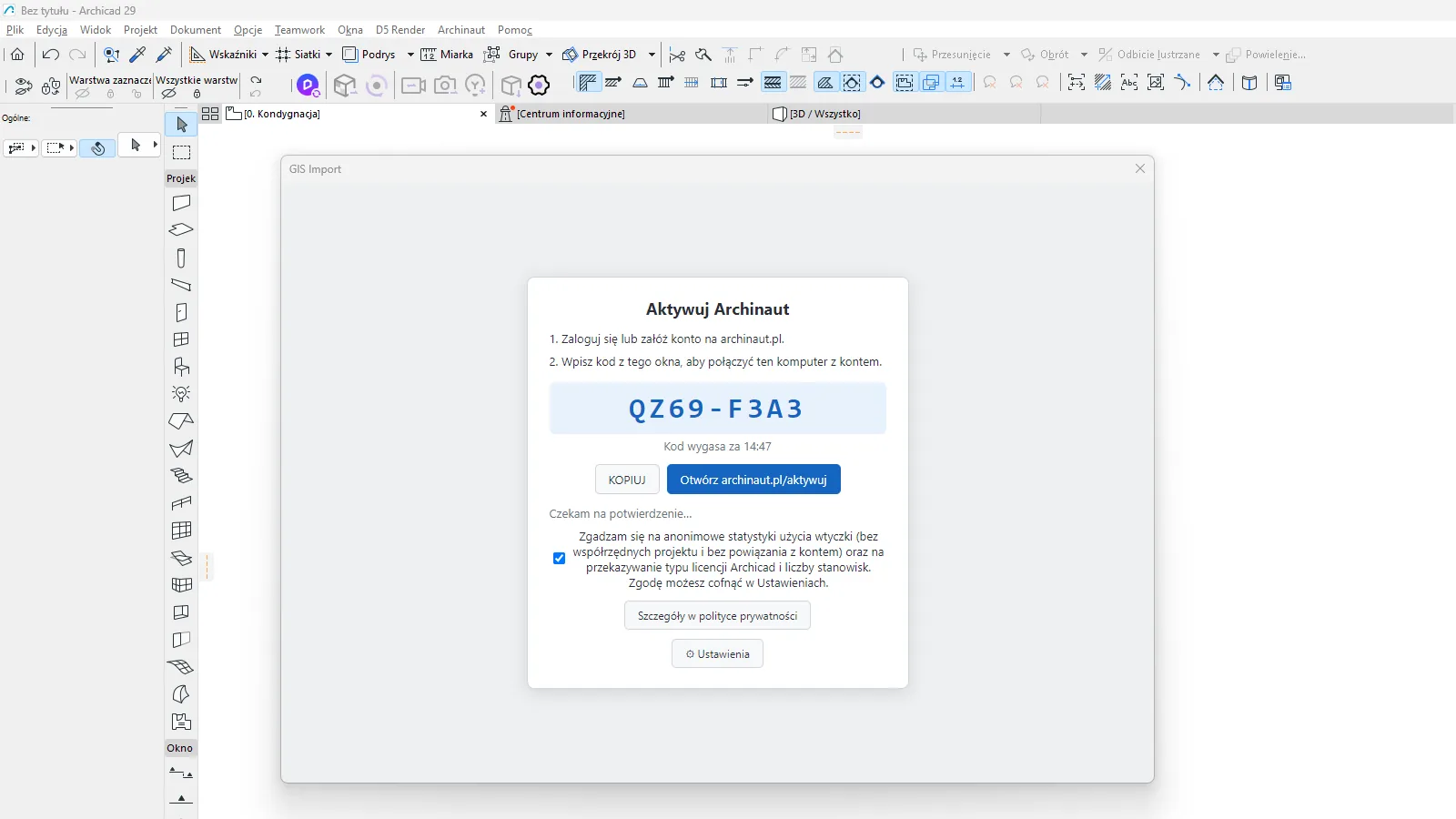
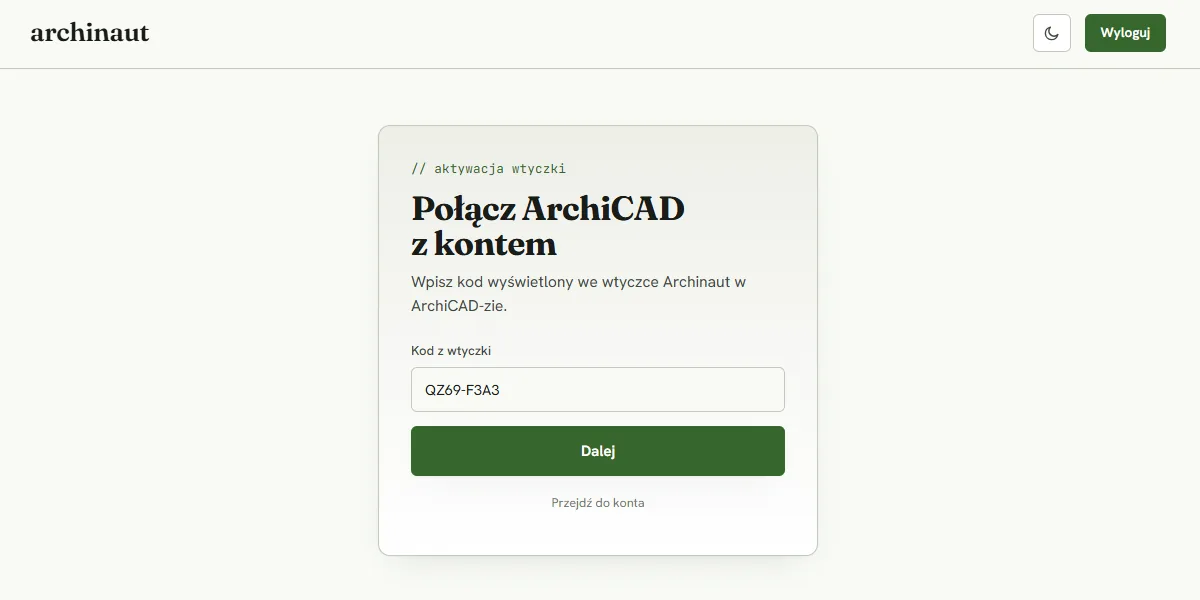
The browser part, step by step:
Step 1. The code in the palette. The palette shows the code and the button Otwórz archinaut.pl/aktywuj (Open archinaut.pl/aktywuj).
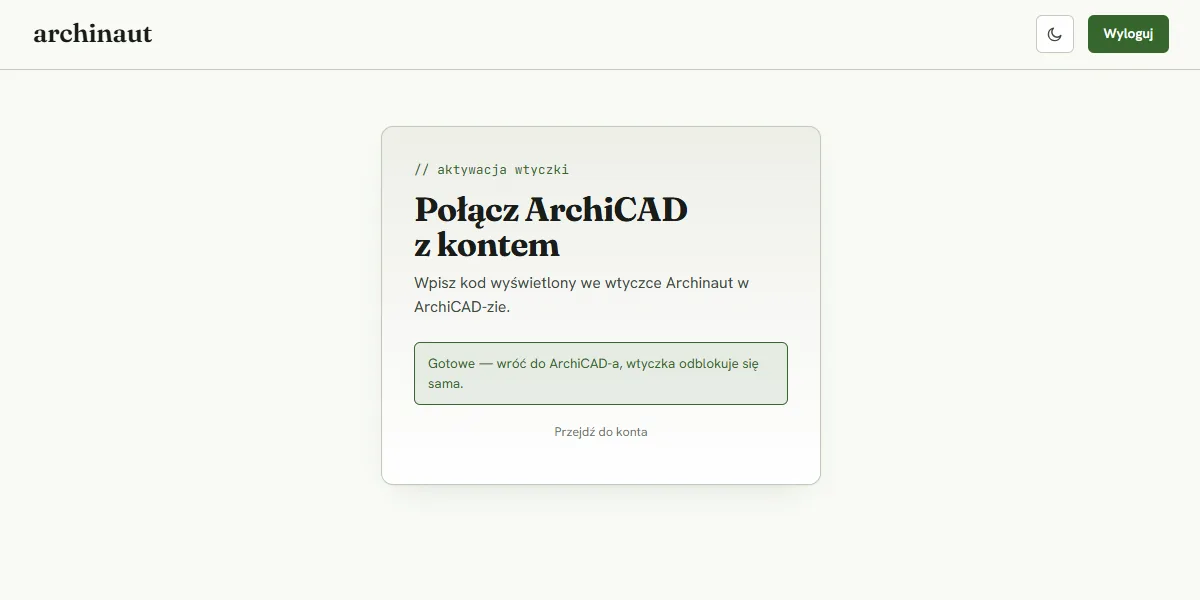
Step 2. The activation page. The page “Połącz ArchiCAD z kontem” (Connect ArchiCAD to your account) opens with the code already typed in the field Kod z wtyczki (Code from the add-on). If you opened the page by hand, paste the code from the palette there and click Dalej (Next).
Step 3. Check the computer. Under the question “Czy to Twój komputer?” (Is this your computer?) you will see the code, the computer name, the system and the Archicad version. If it is your computer, click Potwierdź (Confirm). If not, click To nie mój komputer (This is not my computer).
Step 4. Done. The page shows the message “Gotowe - wróć do ArchiCAD-a, wtyczka odblokuje się sama.” (Done - go back to Archicad, the add-on unlocks itself.) Go back to Archicad and wait a moment.
The code is valid for 15 minutes, and a countdown below it shows the remaining time: “Kod wygasa za…” (Code expires in…). After it expires, the add-on fetches a new one itself. If the page says that the code is invalid or has expired, generate a new one in Archicad (button Pobierz nowy kod - Get a new code) and try again.
If the account has no license yet, the add-on shows the button Kup licencję (Buy a license). It then checks every 90 seconds whether the license is already active.
One license, one computer
- You disconnect a computer on the account page (section “Komputery” - Computers) or in the palette: ⚙ Ustawienia › Licencja › Odłącz ten komputer (Settings › License › Disconnect this computer). The add-on asks for confirmation and stops working until you activate it again.
- If the license is taken by another computer, the activation page shows a list of computers with the button Odłącz (Disconnect).
- You can move the license at most 3 times in 30 days. When the limit is used up, wait until the 30 days pass or email hello@archinaut.pl and we will unlock the license.
- Activating again on the same, not disconnected computer (for example after reinstalling) is not a move.
What the add-on shows when something is wrong
| Message in the palette | What to do |
|---|---|
| “Komputer odłączony na stronie konta - aktywuj ponownie.” (Computer disconnected on the account page - activate again.) | Click Aktywuj ponownie (Activate again). |
| “Płatność nieopłacona - sprawdź konto.” (Payment not made - check your account.) or “Licencja wygasła - odnów ją na archinaut.pl.” (License expired - renew it at archinaut.pl.) | Click Otwórz konto (Open account) and pay for the license. |
| “Czekamy na zaksięgowanie płatności…” (Waiting for the payment to be recorded…) | Wait. The license usually starts within seconds of the payment. |
| “Licencja jest już używana na maksymalnej liczbie komputerów.” (The license is already used on the maximum number of computers.) | Disconnect an unused computer on the account page. |
| “Nie można potwierdzić licencji - sprawdź połączenie z internetem.” (The license cannot be confirmed - check your internet connection.) | Check your network and click Spróbuj ponownie (Try again). |
The add-on checks the license in the background every 6 hours. If a payment is delayed, you have a 7-day buffer after the end of the paid period. A canceled subscription works until the end of the paid period.
For the curious
The license key is stored in the system keystore: in Windows through DPAPI, on macOS in Keychain. It is not in a plain file.
Prices and terms (49 PLN net per month or 499 PLN net per year, sold to companies and sole traders with a Polish tax number, NIP) are at https://archinaut.pl/. One license covers all functions, Archicad 23-30, and both Windows and macOS.
The ‘Invoice’ PDF on the Stripe page is a payment confirmation from the payment operator - it is not a VAT invoice and should not be booked. We issue the VAT invoice in KSeF (the Polish national e-invoicing system) within 7 days of payment; we email you its PDF and you can also find it on your Account page.
Educational license #
Students can get a license free of charge. The rules come from the terms and conditions.
- Log in at archinaut.pl and fill in the application in your account: university, field of study, year of graduation and the statement “Korzystam wyłącznie do nauki, nie w celach zarobkowych.” (I use it only for study, not for profit.)
- Give your university e-mail address. Addresses of public mailboxes are rejected, and the others are checked by hand.
- The seller reviews the application by hand, may refuse, and answers by e-mail.
- After approval you activate the add-on the same way as a regular license - see license activation.
- The license lasts 365 days from approval and works on one computer (the same transfer rules as above).
- Renewal needs a new application. You get a reminder e-mail 30 days before the end.
- The educational license is meant only for study and only for the Education version of Archicad. Using it in commercial Archicad breaks the terms and conditions.
- In the palette, in Settings, you will see the status “Licencja edukacyjna - tylko do nauki, ważna do…” (Educational license - for study only, valid until…) with a date.
- The educational license has no invoice and no payment.
Updates #
The add-on checks for a new version at start (no more than once per 24 hours) and on your request. It does not install updates by itself.
- When there is a new version, the ⚙ icon on the palette toolbar gets a bubble “Ustawienia - dostępna nowa wersja” (Settings - new version available).
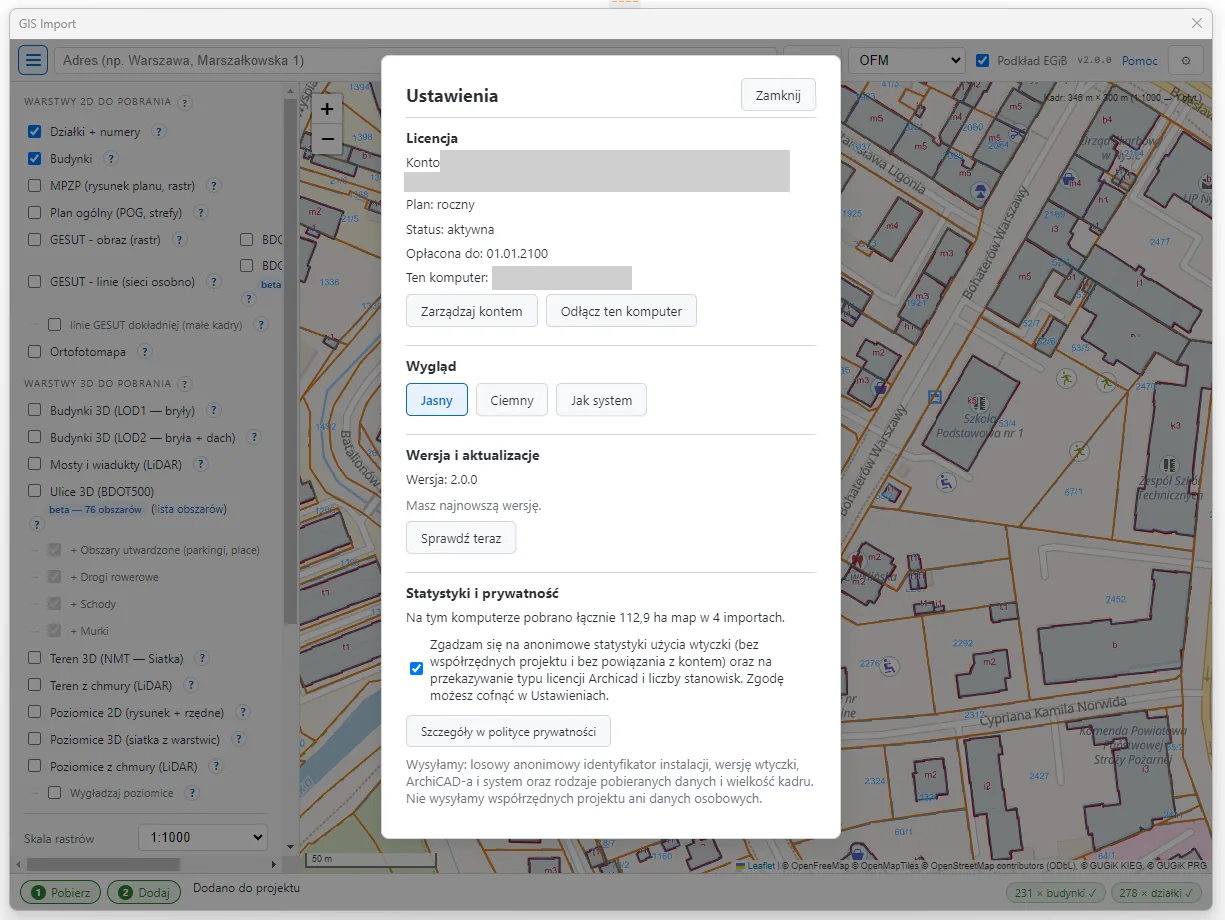
- Open ⚙ Ustawienia (Settings). In the section Wersja i aktualizacje (Version and updates) you will see “Dostępna nowa wersja” (New version available) and the button Pobierz (Download). It opens the download page on archinaut.pl.
- Download the new package for your Archicad version and close Archicad.
- Windows: replace the old add-on file with the new one (same name, same place) or in the Add-On Manager remove the old entry and add the new file. Never keep two copies of the add-on installed at once.
- macOS: remove the old
GIS_ARCHICAD.bundlefrom the Add-Ons folder and repeat the steps from the section installation on macOS (the same Terminal commands for the new file).
- The button Sprawdź teraz (Check now) in the same section checks the version immediately. The message “Masz najnowszą wersję.” (You have the latest version.) means that nothing needs to be done.
Updates needed to keep compatibility are free as long as your license lasts.