Point cloud and tools
Downloading the GUGiK LiDAR point cloud to an E57 file, importing it into Archicad and cleaning up duplicated Polylines, Texts and Morphs.
Updated: 2026-10-16 · add-on 2.1.0
Point cloud #
In short: the separate „Chmura punktów” (Point cloud) palette downloads a point cloud from airborne laser scanning (GUGiK) for the area visible on the map and saves it as a colored E57 file. You insert this file into the project by hand - this is described in the section importing the E57 file.
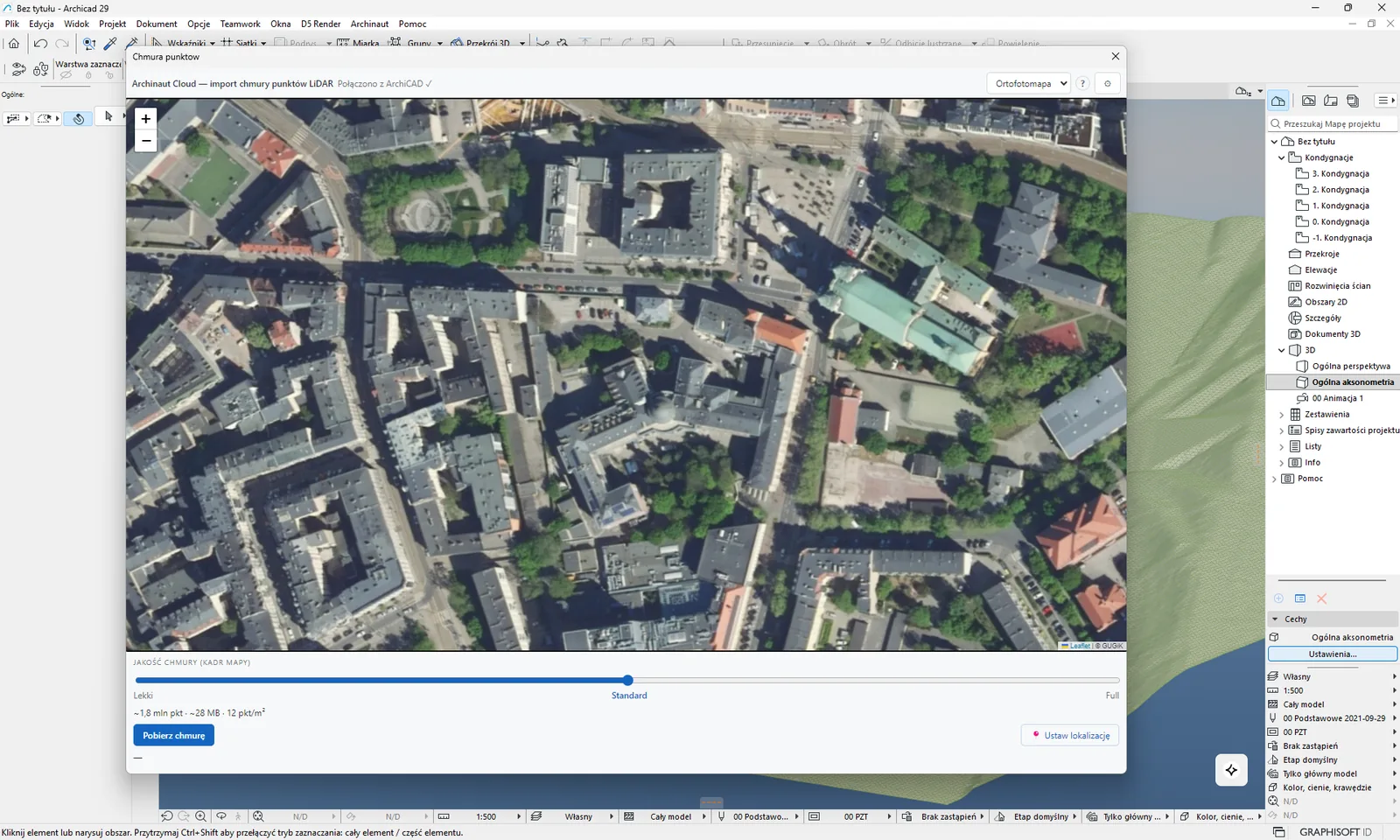
Where the data comes from
The data comes from GUGiK (the Head Office of Geodesy and Cartography). The add-on checks the index of available surveys from the newest year downwards and takes the first year that has data for your frame. The points have colors (RGB) stored in the source file. Coverage and notes: data coverage.
For the curious
The add-on downloads LAZ tiles from the national LiDAR index (EVRF2007). The tiles are in the PL-2000 system (zones 2176-2179) or PL-1992 (EPSG:2180), and the add-on converts the points to system 2180. To reduce the file size, the add-on can simplify the cloud with a voxel grid: it replaces the points from one cube of a given side length with a single point.
How to use it
- Open the palette from the menu „Archinaut › GIS Import › Chmura punktow” (Point cloud) (this menu item has no Polish characters). The same item hides the palette. The palette requires an active license - see license activation.
- Set the map so that the view covers the area you need. The frame is exactly what you see in the map window, as in the import palette. The base map list switches between „Mapa” (Map) and „Ortofotomapa” (Orthophoto map). „Mapa” is available only when the palette supports 3D graphics. Without it, only the orthophoto map remains.
- If you want the cloud to sit exactly on your project, set the project location first - see below.
- Choose the quality with the „Jakość chmury (kadr mapy)” (Cloud quality (map frame)) slider: „Lekki” (Light), „Standard” (default) or „Full”.
- Wait a moment after moving the map or the slider. An estimate appears in the field under the slider, for example „~3,2 mln pkt · ~51 MB · 12 pkt/m²” (~3.2 million points · ~51 MB · 12 points/m²). Until the estimate appears, the „Pobierz chmurę” (Download cloud) button is inactive.
- Click „Pobierz chmurę”. During the download you see the progress (LiDAR index, successive tiles, processing, saving), and the „Anuluj” (Cancel) button lets you stop it.
- When the file is ready, the „Chmura gotowa” (Cloud ready) window appears - continue in the section importing the E57 file.
| Quality | What it does to the points |
|---|---|
| „Lekki” (Light) | Simplifies the cloud: one point per cube with a 0.50 m side. |
| „Standard” | Simplifies the cloud: one point per cube with a 0.20 m side. |
| „Full” | No simplification, all points stay. |
Set the location in the cloud palette
The „📍 Ustaw lokalizację” (Set location) button saves the center of the view as the project's georeference (in the Polish coordinate system, with the zone chosen for the place) - like in the import palette, described in the section project location. There are two differences:
- It does not fetch the terrain height. The project elevation is zero, unless the project already had one and you move the location by at most 5 km within the same zone - then the previous one stays. If the height matters to you, set the location in the import palette.
- The cloud palette shows no confirmation after the click. This is normal: the location is set, and a record is left in the Archicad Report. You can check it in Options › Project Preferences › Georeferencing (Polish: Opcje › Preferencje projektu › Georeferencja).
For the curious
This means the PL-2000 system in the zone chosen for the place - the same as in the import palette.
Settings
The cloud palette also has the „⚙ Ustawienia” (Settings) icon. It opens the same settings as the map palette: the license, the appearance (theme) and the version - see settings. Without an active license, the cloud palette shows the same activation screen as the map palette.
What ends up in the project
| What | Where | Notes |
|---|---|---|
| The cloud file (E57, with colors) | The Archinaut\Chmury folder - see importing the E57 file | The file is created on disk. Nothing changes in the project until you import it yourself. |
| A point cloud element in Archicad | Created only after the manual import | The add-on creates no layer or element for the cloud. |
Limits and tips
- The limit is 8,000,000 points per download. When the estimate exceeds it, a red note „przekroczono limit, zmniejsz kadr lub jakość” (limit exceeded, reduce the frame or the quality) appears under the slider, and the „Pobierz chmurę” button is blocked. Reduce the frame or move the slider towards „Lekki”.
- At first the estimate is based on a typical point density. When the add-on reads the index of point cloud tiles, it uses the density of the densest tile from that index.
- Point cloud tiles are large: a single one is tens of MB, and sometimes hundreds. Downloaded files stay in the cache on your disk, so downloading the same area again does not fetch them again.
- If some tiles do not download or are damaged, the add-on adds a note to the final message that the cloud may be incomplete.
- Inserting the cloud into Archicad is always manual - automatic insertion is turned off.
- The file is saved in a local system. If the project has a georeference in the same PL-2000 zone, the cloud is anchored at the project's Survey Point and at its zero level. Otherwise the offset is calculated from the corner of the frame, and the cloud sits "on its own", independent of the rest of the project.
Related: importing the E57 file, terrain from point cloud, project location. Having a problem? See the point cloud messages.
Importing the E57 file #
In short: after the download, the cloud is in an E57 file in a folder on your disk. Archicad loads it through its own import window, and the add-on gives you a ready path to paste.
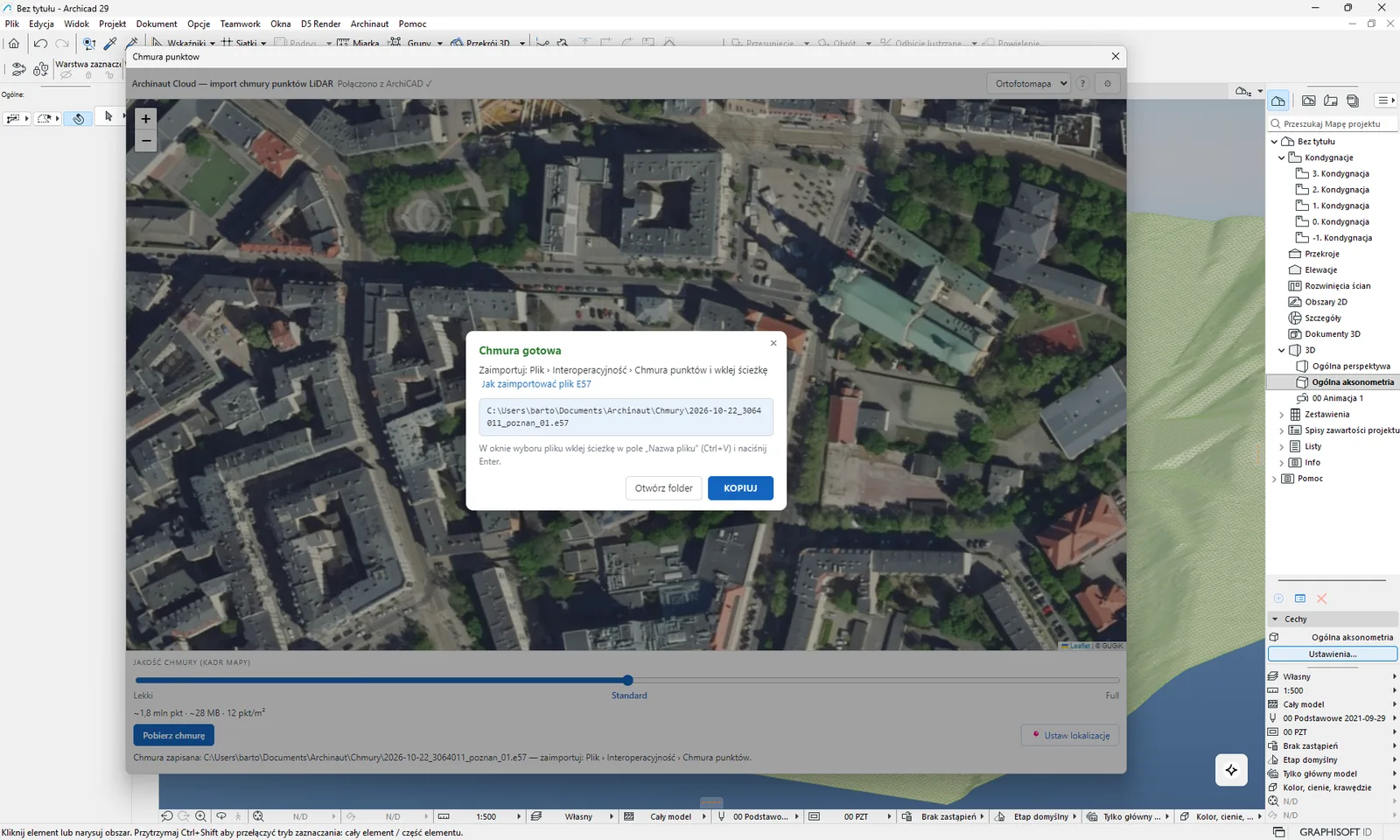
Where the file comes from
The add-on saves the file when the download from the point cloud section finishes. Nothing is sent to a server.
How to use it
- Wait for the „Chmura gotowa” window. It shows the full path to the new file.
- Click „KOPIUJ” (Copy). On success the button briefly shows „Skopiowano ✓” (Copied). If copying fails, the path stays selected - copy it yourself (Ctrl+C on Windows, ⌘C on macOS). The „Otwórz folder” (Open folder) button opens the folder with the new file selected.
- In Archicad choose File › Interoperability › Point Cloud…
- In the file selection window, paste the path:
- Windows: into the "File name" field (Ctrl+V) and press Enter.
- macOS: press ⌘⇧G (Go to Folder), paste the path (⌘V) and press Enter.
- Then proceed as with any point cloud import in Archicad.
You close the window with the cross or the Esc key. The file stays in the folder, so you can come back to it later.
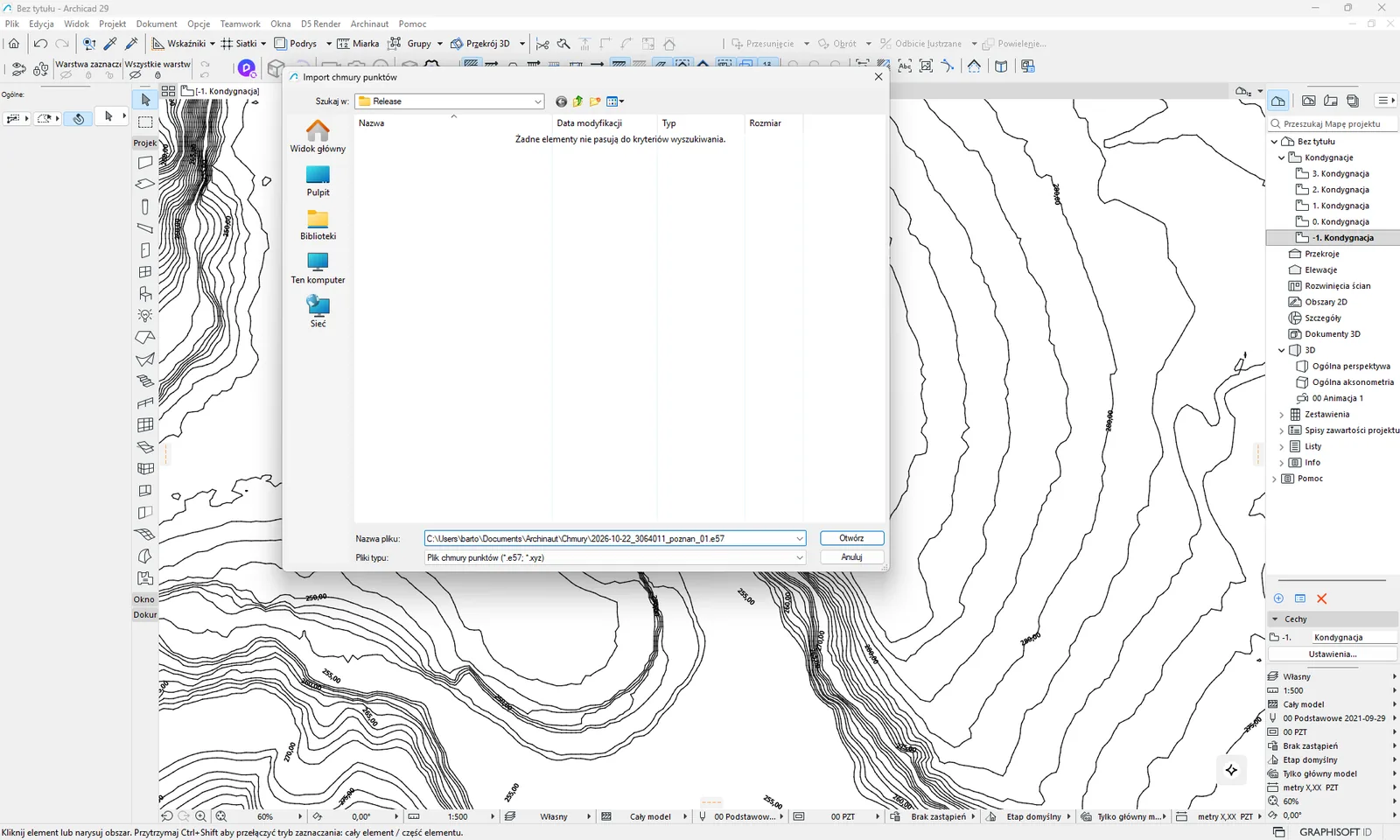
File name and folder
The name has the form RRRR-MM-DD_<TERYT>_<nazwa-gminy>_NN.e57, that is YYYY-MM-DD_<TERYT>_<municipality-name>_NN.e57, for example 2026-10-16_1261011_krakow_01.e57.
- The date is today's date from your computer.
- TERYT (the national code of the municipality) and the name come from the municipality in which the center of the frame lies. The name is written in lower case, without Polish characters (for example
bielsko-biala), and spaces turn into hyphens. NNis a running number: the add-on takes the highest existing number for the same beginning of the name and adds 1. It never overwrites an existing file.- When the municipality cannot be determined (no internet or a frame outside Poland), the name has the form
RRRR-MM-DD_chmura_NN.e57(YYYY-MM-DD_chmura_NN.e57, where "chmura" means cloud).
The default folder is Dokumenty/Archinaut/Chmury (Documents/Archinaut/Chmury). There is one exception: if the Documents folder is synchronized to the cloud (OneDrive on Windows, iCloud Drive on macOS), the file goes to the home folder: Archinaut/Chmury inside it. This way a file of several hundred megabytes does not fill the limit of your cloud storage.
When the main folder does not work, the add-on saves the file in its own program data folder (Windows: %APPDATA%\Archinaut_Cloud, macOS: ~/Library/Application Support/Archinaut_Cloud) and shows a yellow note with the reason in the window: no access, no disk space, file name numbers used up, folder unavailable or a write error. The path in the window always shows where the file really is.
What ends up in the project
| What | Where | Notes |
|---|---|---|
| The E57 file | Disk, the folder described above | The add-on only saves it. |
| The point cloud in the project | Created after your import in Archicad | You choose the layer and display settings in the Archicad import window, not in the add-on. |
Limits and tips
- You always import manually: the add-on does not insert the cloud by itself.
- Before you import, set the project georeference (section project location) if the cloud should sit on the same coordinates as the parcels and buildings.
- On macOS the
Application Supportfolder is hidden in Finder. This is a common reason for a report that "the file is nowhere on the disk". By default the file goes to Documents or the home folder, so this situation applies only to the fallback mode. - Many files with successive
_NNnumbers are normal: every download creates a new file.
Related: point cloud, macOS issues. Having a problem? See the point cloud messages.
Duplicate cleanup #
In short: the command removes elements that lie on top of each other from the project: duplicated Polylines, Texts and Morphs. One element stays from each group of duplicates, and you undo the whole thing with one Edit › Undo.
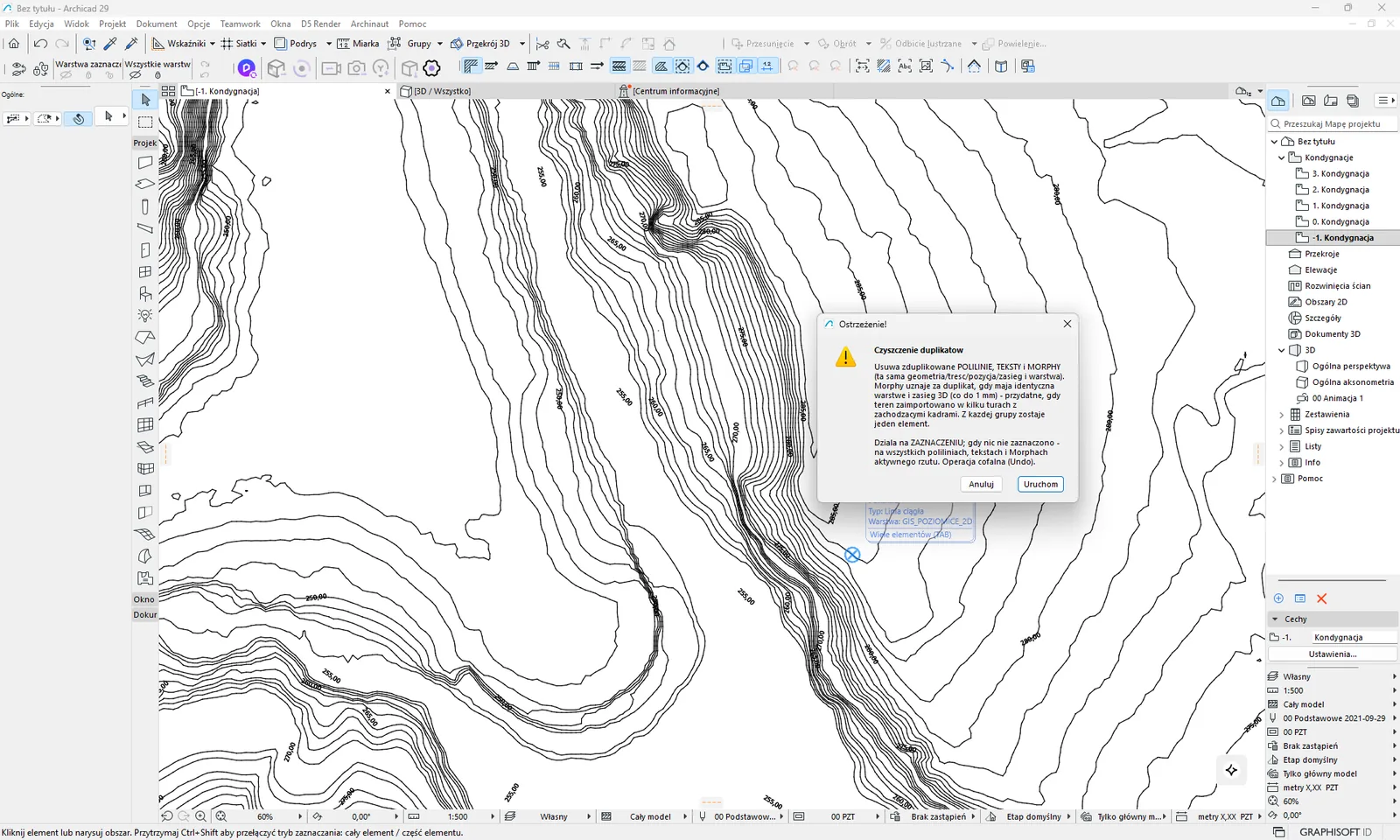
Where the data comes from
This tool downloads nothing from the internet. It works only on elements that are already in your project. It can be useful after several imports with overlapping frames.
How to use it
- Select the elements to check, or select nothing - see below for what happens then.
- Choose „Archinaut › GIS Import › Czyszczenie duplikatow (polilinie + teksty)” (Duplicate cleanup (Polylines + Texts)). The menu name has no Polish characters and is older than the tool: the command also handles Morphs.
- Without an active license, the window „Wymagana licencja Archinaut” (Archinaut license required) appears with the buttons „Otwórz paletę mapy” (Open the map palette) and „Anuluj” (Cancel).
- In the „Czyszczenie duplikatow” window, read the description and click „Uruchom” (Run) (or „Anuluj”).
- When it finishes, you see a window with a summary, for example „Usunieto duplikaty:” (Duplicates removed:) with counters of Polylines, Texts and Morphs, or „Nie znaleziono zduplikowanych polilinii, tekstow ani Morphow.” (No duplicated Polylines, Texts or Morphs found.)
The description in the confirmation window reads: „Usuwa zduplikowane POLILINIE, TEKSTY i MORPHY (ta sama geometria/tresc/pozycja/zasieg i warstwa). Morphy uznaje za duplikat, gdy maja identyczna warstwe i zasieg 3D (co do 1 mm) - przydatne, gdy teren zaimportowano w kilku turach z zachodzacymi kadrami. Z kazdej grupy zostaje jeden element. Dziala na ZAZNACZENIU; gdy nic nie zaznaczono - na wszystkich poliliniach, tekstach i Morphach aktywnego rzutu. Operacja cofalna (Undo).” (Removes duplicated POLYLINES, TEXTS and MORPHS (the same geometry/content/position/extent and layer). Morphs count as duplicates when they have an identical layer and 3D extent (to 1 mm) - useful when terrain was imported in several runs with overlapping frames. One element stays from each group. Works on the SELECTION; when nothing is selected - on all Polylines, Texts and Morphs of the active plan. The operation can be undone (Undo).)
What exactly counts as a duplicate
| Element type | Counted as a duplicate when | Notes |
|---|---|---|
| Polyline | The same layer and the same geometry. | The drawing direction and the start point of a loop do not matter. Coordinates are compared to 1 mm. |
| Text | The same layer, the same content and the same position. | The position is compared to 1 mm. |
| Morph | The same layer and an identical bounding box in 3D. | Only this box counts (the 3D extent, to 1 mm), not the shape. |
Scope of action
- Something is selected: the add-on checks only the selected Polylines, Texts and Morphs.
- Nothing is selected: the add-on checks all Polylines, Texts and Morphs of the active storey (plan).
- A selection without Polylines, Texts and Morphs: the add-on does not switch to the whole plan, but shows the message „Brak polilinii, tekstow ani Morphow do sprawdzenia.” (No Polylines, Texts or Morphs to check.)
From each group of duplicates, the first element from the project's list stays. You cannot influence which one it is.
What ends up in the project
The tool adds nothing, it only removes elements.
| What | Effect |
|---|---|
| Polylines, Texts, Morphs | Duplicates are removed, one element stays from each group. |
| Meshes | Not checked or removed. This applies to terrain from the NMT and from the cloud, 3D contours and 3D streets. |
| Slabs, Fills, Objects, Lines | Not checked or removed. |
Limits and tips
- Undo: the whole cleanup is a single operation, which you undo with Edit › Undo in Archicad.
- Despite the description in the window, terrain from the NMT and from the cloud is a Mesh, not a Morph, so the cleanup does not cover it. Remove overlapping terrain tiles by hand.
- Elements on a locked layer, or locked or grouped elements, can prevent removal. Then the message „Nie udalo sie usunac duplikatow - sprawdz, czy elementy nie leza na zablokowanej warstwie lub nie sa zablokowane/zgrupowane.” (Could not remove the duplicates - check whether the elements are on a locked layer or are locked/grouped.) appears. Unlock the elements and run the command again.
- Polylines with fewer than two points are skipped.
- The summary lists a counter in the row „Morphy (teren/bryly)” (Morphs (terrain/solids)). The name is misleading, because terrain is a Mesh: it means Morphs, that is, for example, LOD2 buildings and bridges.
Related: LOD2 buildings and bridges, the import palette. Having a problem? See the duplicate cleanup messages.