Palette and georeferencing
How to use the Archinaut palette in Archicad: map, frame, setting the location, PL-2000 georeferencing, target layers and settings.
Updated: 2026-10-19 · add-on 2.1.0
Map #
In short: the GIS Import palette is a window with a map of Poland. You choose on it the place from which you want to download data. You can dock the window in Archicad and resize it.
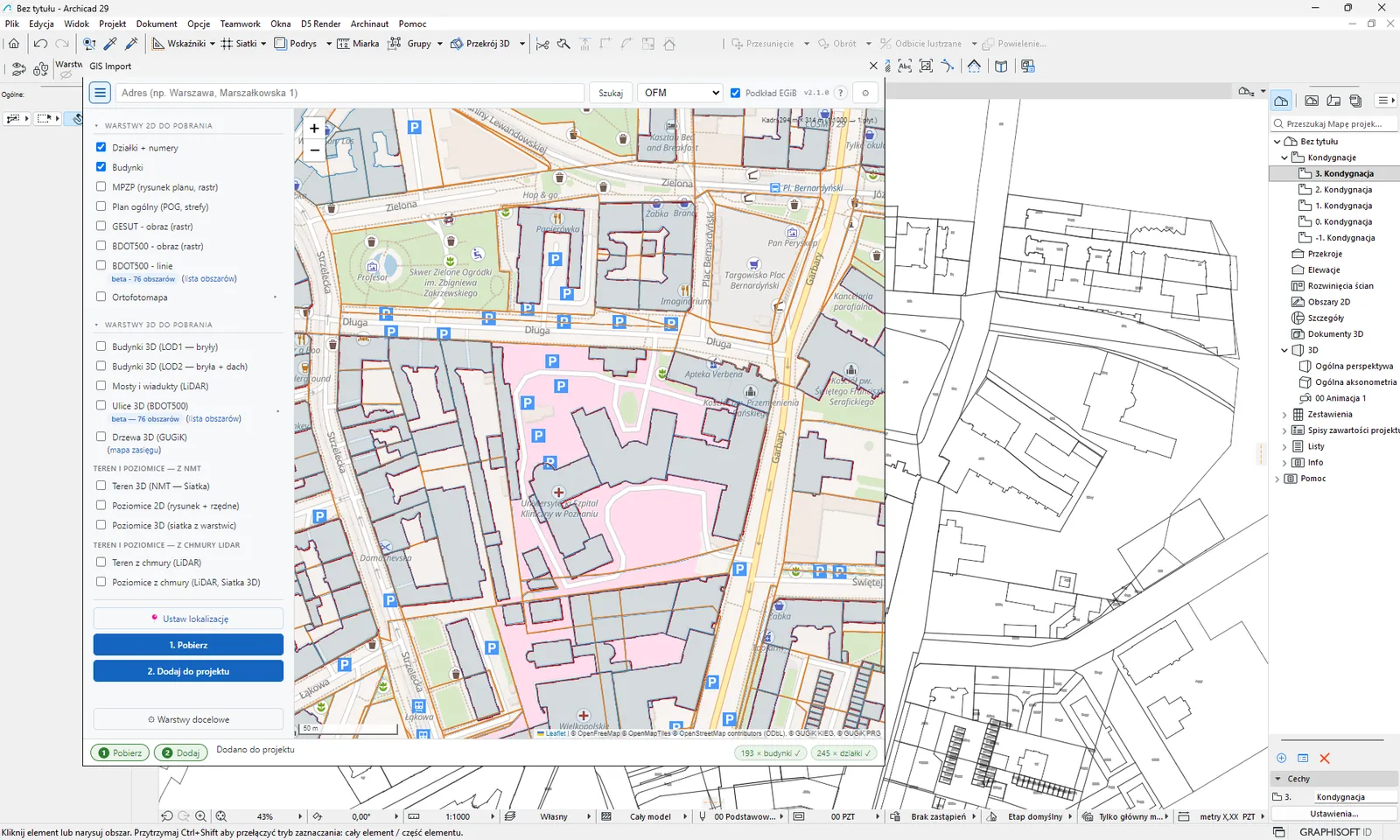
You open it from the menu Archinaut › GIS Import › Mapa importu GIS (Map of GIS import). It needs an active license - see license activation.
Toolbar
- Hamburger (the button on the left) collapses and expands the layer panel. The palette remembers your choice.
- Address field with the button Szukaj (Search). Type for example “Warszawa, Marszałkowska 1”. From the third character on, suggestions appear (up to five), which you move through with the up and down arrows. Enter selects an item, Esc closes the list. The map moves to the place found.
- Base map list: “OFM”, “Ortofotomapa” (Orthophoto map) or “Brak” (None).
- Podkład EGiB (EGiB base map - ticked by default).
- The add-on version number, the ? icon (opens this guide) and the ⚙ icon (Settings).
Help for a specific option: hold Ctrl (on a Mac Cmd). Options that have a description in the guide are highlighted. Click the option you want - its section on archinaut.pl/pomoc opens, and the field itself does not toggle. The point cloud palette works the same way.
Base maps - for preview only
The base map helps you find your way on the map. Nothing from it goes into the project.
- OFM is the OpenFreeMap vector map. It needs the browser in the palette to support 3D graphics. If it does not, the item disappears from the list and the orthophoto is turned on by default.
For the curious
This means the WebGL technology, which the vector map uses for drawing.
- Ortofotomapa (Orthophoto map) is aerial photography from the geoportal. The geoportal server sometimes randomly fails to return a map tile, so the add-on repeats such a request up to three times.
- Podkład EGiB (EGiB base map) shows parcel boundaries and numbers and buildings from the national land and building register (EGiB). You see them from a fairly close zoom. When zoomed out, you see province boundaries. This is only for orientation - the import always downloads data from the county service, not from this base map.
When the project already has georeferencing, the map centers on its point when you open the palette.
Frame #
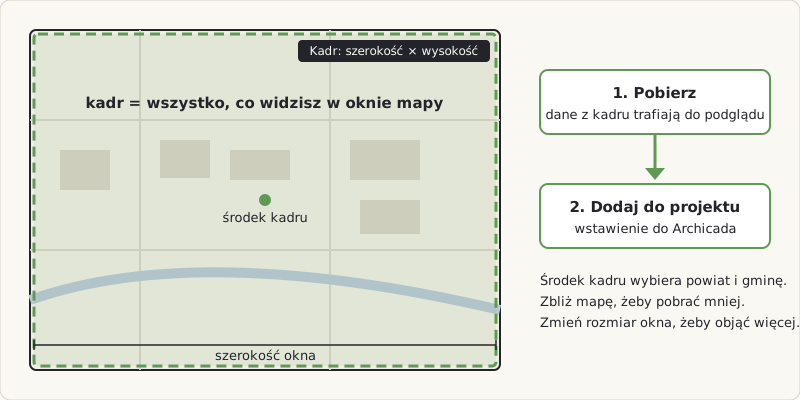
In short: the frame is the area you see in the map window. The add-on downloads exactly as much as fits in the window.
There is no tool for drawing a rectangle. You set the frame by zooming and panning the map. You also resize the palette window to cover a larger or smaller area.
In the top right corner of the map you see an indicator like “Kadr: szerokość × wysokość (1:skala → N płyt.)” (Frame: width × height (1:scale → N tiles)). It shows the frame dimensions, the chosen raster scale and the approximate number of tiles into which the images will be divided.
Which county and municipality the data comes from
The county (for parcels, buildings, GESUT and BDOT500) and the municipality (for MPZP and the general municipal plan) are determined from the center of the frame. If the frame overlaps a neighboring county, data from it will not be downloaded. Put the center of the frame on the area you are interested in.
Tips
- Start with a small frame. It downloads faster and the result is easier to check.
- Some options have their own frame size limits (for example BDOT500 lines up to 1 km2). We describe them at each option in the sections 2D data and 3D data.
Project location #
In short: the button 📍 Ustaw lokalizację (Set location) saves the center of the map view as the georeferencing of your project. Thanks to this the data is placed in the right location and at the right height.
How to use it:
- Set the map so that its center falls on the project site.
- Click 📍 Ustaw lokalizację.
- In the palette you will see a message such as “Lokalizacja projektu ustawiona: E=… N=… (PL-2000 strefa 7, EPSG:2178), H=… m n.p.m. (PL-EVRF2007-NH)” (Project location set: E=… N=… (PL-2000 zone 7, EPSG:2178), H=… m a.s.l. (PL-EVRF2007-NH)). The height H appears when it is not zero. The abbreviations in brackets are the names of the coordinate system and the height system - explained in the box below.
For the curious
PL-2000 is the Polish plane coordinate system, and EPSG:2178 is its number in the international registry (zone 7). PL-EVRF2007-NH is the Polish system of heights above sea level.
Do this once at the start of work on a project, before you start downloading data. The click does not block Archicad: the terrain height at the center of the frame is fetched in the background and added to the project after a moment.
What the add-on saves is described in the section georeferencing.
When the location does not save
The add-on shows the message “Nie udalo sie zapisac georeferencji projektu” (Could not save the project georeferencing) with an error code. Then set the location by hand in Archicad: Options › Project Preferences › Georeferencing (Polish: Opcje › Preferencje projektu › Georeferencja).
Download and add #
In short: the import has two steps. First you download data into the add-on's memory and look at the result on the map, then you place it in the project.
How to use it:
- In the side panel tick layers in the blocks “Warstwy 2D do pobrania” (2D layers to download) and “Warstwy 3D do pobrania” (3D layers to download). If you tick nothing, the add-on asks: “Zaznacz co najmniej jedną warstwę do pobrania.” (Tick at least one layer to download.)
- Click 1. Pobierz (1. Download). In the status bar you see the steps “1 Pobierz” and “2 Dodaj”, a progress label and counters of downloaded items (for example “12 × działki” - 12 × parcels). Vectors (parcels, buildings and others) appear on the map as a preview.
- When the download finishes, the button 2. Dodaj do projektu (2. Add to project) becomes active. Click it to place the data in Archicad. Images are placed first, then 2D elements, so that they lie on top of them.
- After success the status shows “Dodano do projektu” (Added to the project). A ✓ mark appears next to the counter. If the import had remarks, the status adds that you will find them in the Report (Window → Palettes → Report).
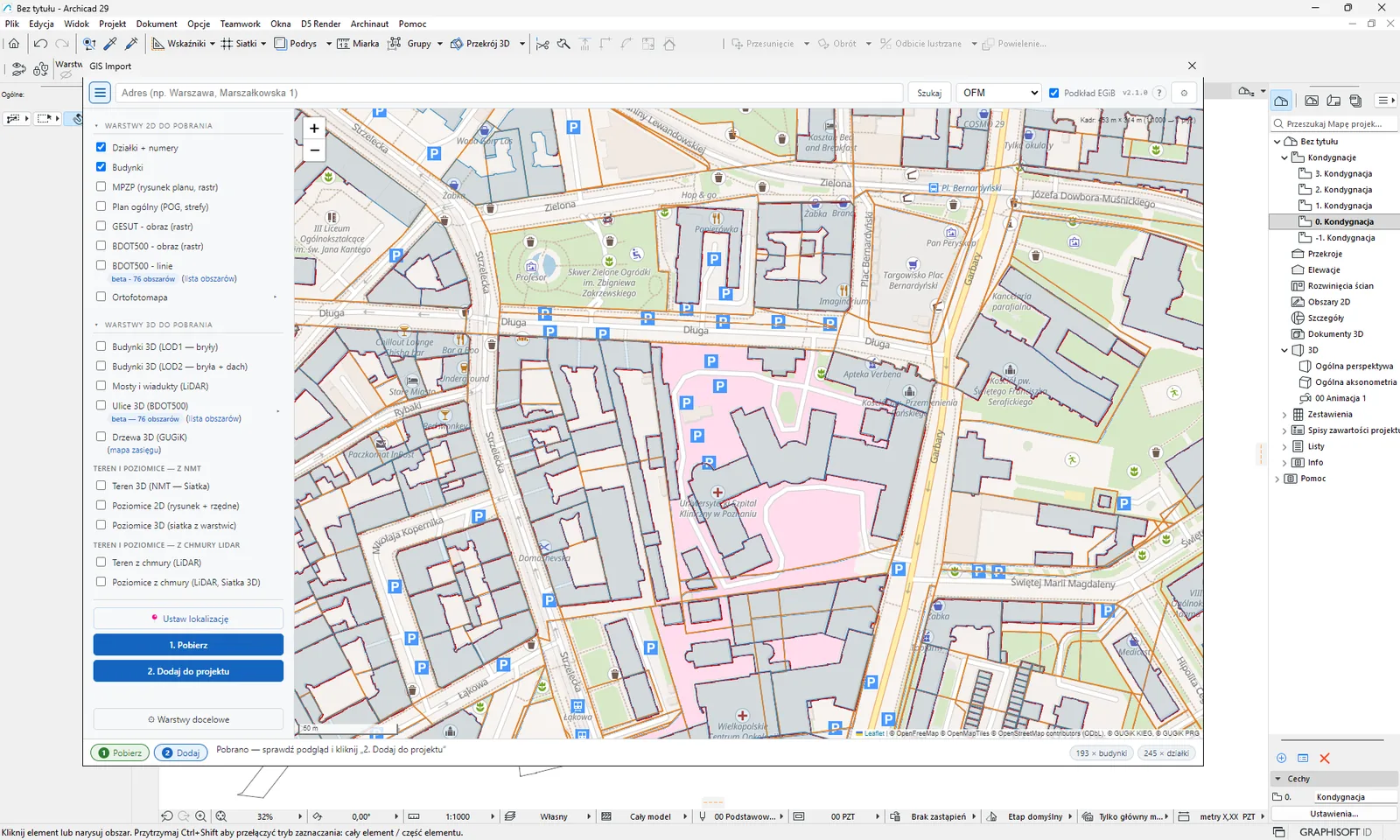
Everything that 2. Dodaj do projektu places is one operation in Archicad. One Undo (Ctrl+Z) reverts the whole import.
During longer downloads (3D building packages, contour lines, 3D streets, BDOT500 lines) the button Anuluj (Cancel) appears. After you click it the status changes to “Anulowanie…” (Cancelling…), then “Anulowano” (Canceled).
Raster scale
The list Skala rastrów (Raster scale) (1:100, 1:250, 1:500, 1:1000, 1:2000; default 1:1000) sets how detailed the GESUT, BDOT500 and MPZP images will be. The smaller the denominator, the finer the labels, but the larger the images. GESUT images are limited to 1:1000, because the county services do not draw networks at a finer scale. Details: GESUT. The list is a ⚙ options row in the block of 2D layers - see the layer panel.
Layer panel: collapsible groups and per-layer options #
Collapsing. Click the header Warstwy 2D do pobrania (2D layers to download) or Warstwy 3D do pobrania (3D layers to download) to collapse or expand the group. The add-on remembers this state on your computer. When a group is collapsed, its header shows the number of layers ticked in it, so you will not lose track of your selection. In the same way you collapse the 3D streets options and the list of years under Orthophoto with the arrow. By default the 2D and 3D groups are expanded and the 3D streets options and the year list are collapsed.
Options under layers. A box with the options (each option on its own line: name and drop-down list) appears under a layer only when you tick it. The old option lists at the bottom of the panel are gone - each setting now sits next to its layer:
| Under the layer | Options | Description |
|---|---|---|
| MPZP, GESUT - image, BDOT500 - image | Skala rastrów (Raster scale) | One list for the three rasters - see above. |
| 3D terrain (NMT) | krok siatki (grid step) 1 / 2 / 5 m | Terrain step. |
| Contours from the NMT (2D and 3D) | krok (step) 1 / 2 / 5 m, cięcie (interval) 25 cm / 50 cm / 1 m / 2 m, wygładzaj (smooth) | Its own step, independent of the terrain - contours. |
| Terrain from point cloud | krok siatki (grid step) 0.5 / 1 / 2 m | Point cloud terrain step. |
| Contours from point cloud (3D Mesh) | krok (step) 0.5 / 1 / 2 m, cięcie (interval) 25 cm / 50 cm / 1 m / 2 m, wygładzaj (smooth) | Its own step and interval - contours from point cloud. |
So terrain and contours have separate steps and separate intervals. Changing one does not affect the other.
Target layers #
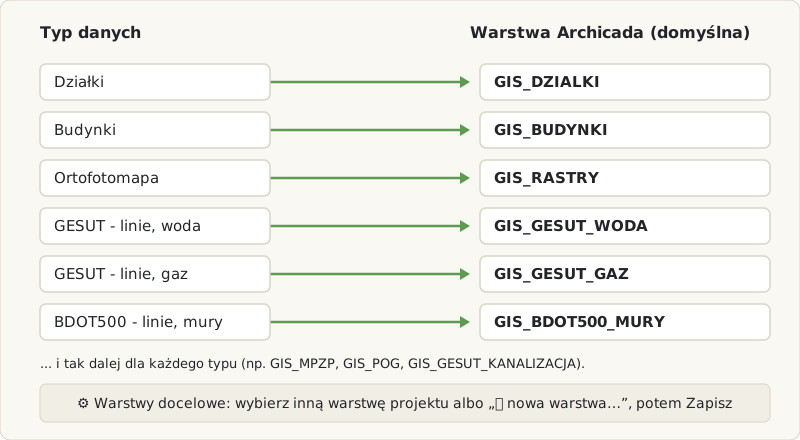
In short: the button ⚙ Warstwy docelowe (Target layers) lets you choose on which Archicad layer each kind of data should land. By default the add-on creates layers whose names start with GIS_.
How to use it:
- Click ⚙ Warstwy docelowe. The window “Mapowanie: typ danych → warstwa ArchiCAD” (Mapping: data type → Archicad layer) opens.
- For each data type choose an existing project layer from the list, or ➕ nowa warstwa… (new layer…) to type your own name.
- Click Zapisz (Save). The status “Ustawienia zapisane” (Settings saved) confirms the save. Zamknij (Close) closes the window without changes.
Default layer names for the 2D options:
| Data | Default layer |
|---|---|
| Parcels | GIS_DZIALKI |
| Buildings | GIS_BUDYNKI |
| MPZP (local zoning plan) | GIS_MPZP |
| General municipal plan (POG) | GIS_POG |
| GESUT - image | GIS_GESUT |
| BDOT500 - image | GIS_BDOT500 |
| Orthophoto and other rasters | GIS_RASTRY |
| BDOT500 - lines | GIS_BDOT500_JEZDNIA_KRAWEDZ, GIS_BDOT500_CHODNIK_KRAWEDZ, GIS_BDOT500_KRAWEZNIKI, GIS_BDOT500_MURY, GIS_BDOT500_SCHODY |
Layer names for 3D data are in the sections on 3D data.
The same window has the switch “Obracaj dane zgodnie z północą projektu” (Rotate data to match the project north), on by default. It is described in the section rotated project north.
Limits and tips:
- If a layer with a given name already exists in the project, the add-on uses it. It creates missing layers itself.
- BDOT500 line layers are created only when at least one line of that kind is created. No empty layers are left behind.
- The settings are saved in a file on your computer and apply to all projects. Windows:
%APPDATA%\GIS_ARCHICAD\settings.json. macOS:~/Library/Application Support/GIS_ARCHICAD/settings.json. - The list of types in the window is fixed. The label “MPZP (strefy + symbole)” (MPZP (zones + symbols)) comes from an older version. Currently MPZP is placed only as an image - see MPZP.
Settings #
In short: the ⚙ icon on the toolbar opens the add-on settings: license, appearance, version and privacy. The panel works even without an active license.
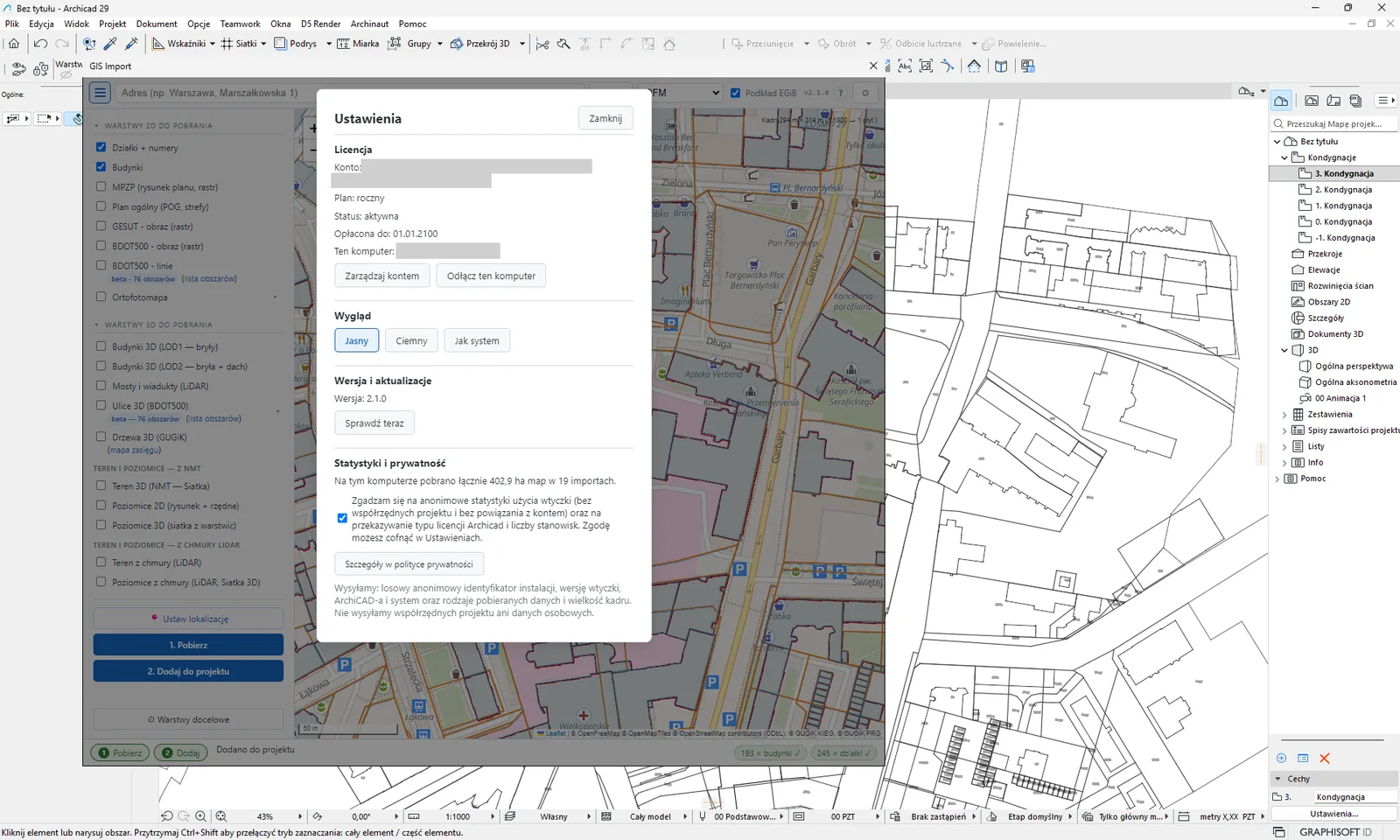
- Licencja (License). Shows the account, plan (monthly, yearly, educational), status, the end date of the paid period and the name of this computer. The button Zarządzaj kontem (Manage account) opens archinaut.pl/konto.html. The button Odłącz ten komputer (Disconnect this computer) disconnects the license after confirmation - see one license, one computer.
- Wygląd (Appearance). The theme “Jasny” (Light), “Ciemny” (Dark) or “Jak system” (Like the system, default). It applies in the map palette and in the point cloud palette.
- Wersja i aktualizacje (Version and updates). The version number and the button Sprawdź teraz (Check now) - see updates.
- Statystyki i prywatność (Statistics and privacy). Shows how many hectares of maps were downloaded on this computer and in how many imports. Below is the consent box for anonymous usage statistics. By default it is unticked.
If you tick the consent, the add-on sends a random anonymous installation identifier, the version of the add-on, Archicad and the system, the kinds of data downloaded and the frame size, as well as the Archicad license type and the number of seats. It does not send project coordinates or personal data, and it does not link statistics to your account. You can withdraw consent at any time - the installation identifier is then deleted. Details are in the privacy policy: https://archinaut.pl/prywatnosc.html#telemetria.
Georeferencing #
In short: georeferencing tells Archicad where on Earth your project lies. The button 📍 Ustaw lokalizację (Set location) sets it for you, in Polish official systems.
What the add-on saves
After you click 📍 Ustaw lokalizację, the add-on writes to the project:
- the horizontal system PL-2000 in the zone chosen for the place (zones 5, 6, 7 or 8),
- the height system used in Poland (heights above sea level),
- a Survey Point at the project zero point, in the center of your frame,
- the georeference with the rotation following the project north (no rotation when the north is the default 90° or the switch is off) and scale 1.0,
- the time zone UTC+1 (it keeps the city name you chose).
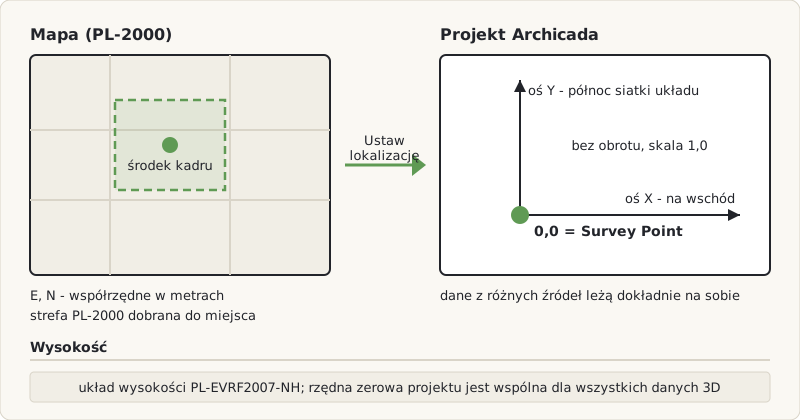
Thanks to this, data from different sources (parcels, buildings, terrain, point cloud) lie exactly on top of one another.
How the add-on converts coordinates
Every point is converted from PL-1992 to PL-2000 exactly, the way surveyors do it, not approximately. Terrain and contours are built on a grid in PL-2000, and heights are read from the terrain model (NMT) at exactly converted points. Images that are already published in PL-2000 (for example the orthophoto) are placed without conversion. Images in PL-1992 are placed by their center, with an accuracy of about 1 mm per 1.2 km tile. Point cloud points that are already in PL-2000 are not converted.
If you downloaded the frame in a different PL-2000 zone than the project's zone, the add-on skips terrain and contours. You see the message „Teren i poziomice pobrano w strefie EPSG:A, a projekt jest w strefie EPSG:B - kliknij „1. Pobierz” ponownie.” (Terrain and contours were downloaded in zone EPSG:A, but the project is in zone EPSG:B - click “1. Pobierz” again.). Click 1. Pobierz (Download) once more.
The PL-2000 rotation is not an error
In the PL-2000 system, grid north does not coincide exactly with north on a web map. The difference comes from the geometry of the system and changes with the position in Poland. That is why the plan can look slightly rotated against the map base. This is intended: we keep the Polish official system.
Rotated project north #
If in Archicad, under Options › Project Preferences › Project Location (Polish: Opcje › Preferencje projektu › Lokalizacja projektu), the north direction differs from the default 90°, the add-on automatically rotates all imported data. This way the geographic north of the data matches the project north.
- 90° means north is up. The angle is measured counter-clockwise from the X axis. For example, 60° is north rotated 30° clockwise.
- The rotation covers vectors, text positions, meshes, Morphs, images and the E57 point cloud.
- For the rotation the add-on adds the meridian convergence of the PL-2000 zone. In Poland it is at most about 1.25°.
- After the import you see in the Report „Uwzględniono północ projektu: obrót danych o X,XX°.” (Project north taken into account: data rotated by X.XX°.).
- If the georeferencing already has a different rotation, you see „Kierunek północy projektu różni się od obrotu w georeferencji o X,XX° - użyto północy projektu.” (The project north differs from the georeferencing rotation by X.XX° - the project north was used.).
- The button 📍 Ustaw lokalizację writes this rotation into the project georeferencing, so the IFC export sees it too. Before, it reset the rotation.
- Parcel numbers and POG symbols stay horizontal on screen. Contour labels follow the lines.
The switch. In the ⚙ Warstwy docelowe window there is the option “Obracaj dane zgodnie z północą projektu” (Rotate data to match the project north). It is on by default. When you turn it off, the rotation comes only from the project georeferencing. A rotation written earlier by 📍 Ustaw lokalizację stays - click 📍 Ustaw lokalizację again to reset it.
For the curious
The conversion from PL-1992 (EPSG:2180) to PL-2000 goes through geographic coordinates, using Krüger series. The agreement with the PROJ library is about 0.001 mm. The meridian convergence of a zone is the angle between grid north and geographic north.
Project zero height
The project zero elevation (the so-called Z base) is common to all 3D data in one import. The add-on takes it from the first available source, in this order:
- the project georeferencing, if it already has an elevation set,
- a height saved earlier at the same place (within 20 km),
- the lowest terrain point from the import,
- building bases,
- other 3D elements,
- the terrain height at the center of the frame,
- zero.
When the base comes from downloaded data, the add-on saves it in the project so that further imports are consistent. If you move the location by no more than 5 km within the same zone, the project elevation is kept. Otherwise the height is calculated again. An import of 2D layers only does not use the Z base.
Safeguards
- When the georeferencing is only approximate (without a Survey Point) and lies more than 2 km from the downloaded area, the add-on will not place the data and asks you to click 📍 Ustaw lokalizację again.
- When the Survey Point lies more than 50 km from the downloaded area, the add-on warns that the elements will be far from the project zero.
- If the project already has georeferencing in zone 2176-2179, the import keeps that zone. Otherwise it uses the zone of the frame.
For the curious
The PL-2000 zones are EPSG numbers: 2176 (zone 5), 2177 (6), 2178 (7) and 2179 (8). The horizontal system is referenced to ETRF2000 (PL-ETRF2000). The height system used in Poland is PL-EVRF2007-NH - heights from the terrain model (NMT) and from the point cloud of the Head Office of Geodesy and Cartography (GUGiK) are saved in it. When Archicad rejects the full set of system fields (this happened in version 27), the add-on tries simpler sets.