3D data
LOD1 and LOD2 buildings, bridges, 3D streets, trees, terrain and contours in Archicad: sources, coverage, limits and what you get in the project.
Updated: 2026-10-19 · add-on 2.1.0
LOD1 buildings #
In short: you get building volumes as Slabs with the height of the building. It is a simplified "box" model, good for shadow studies, concept work and massing models.
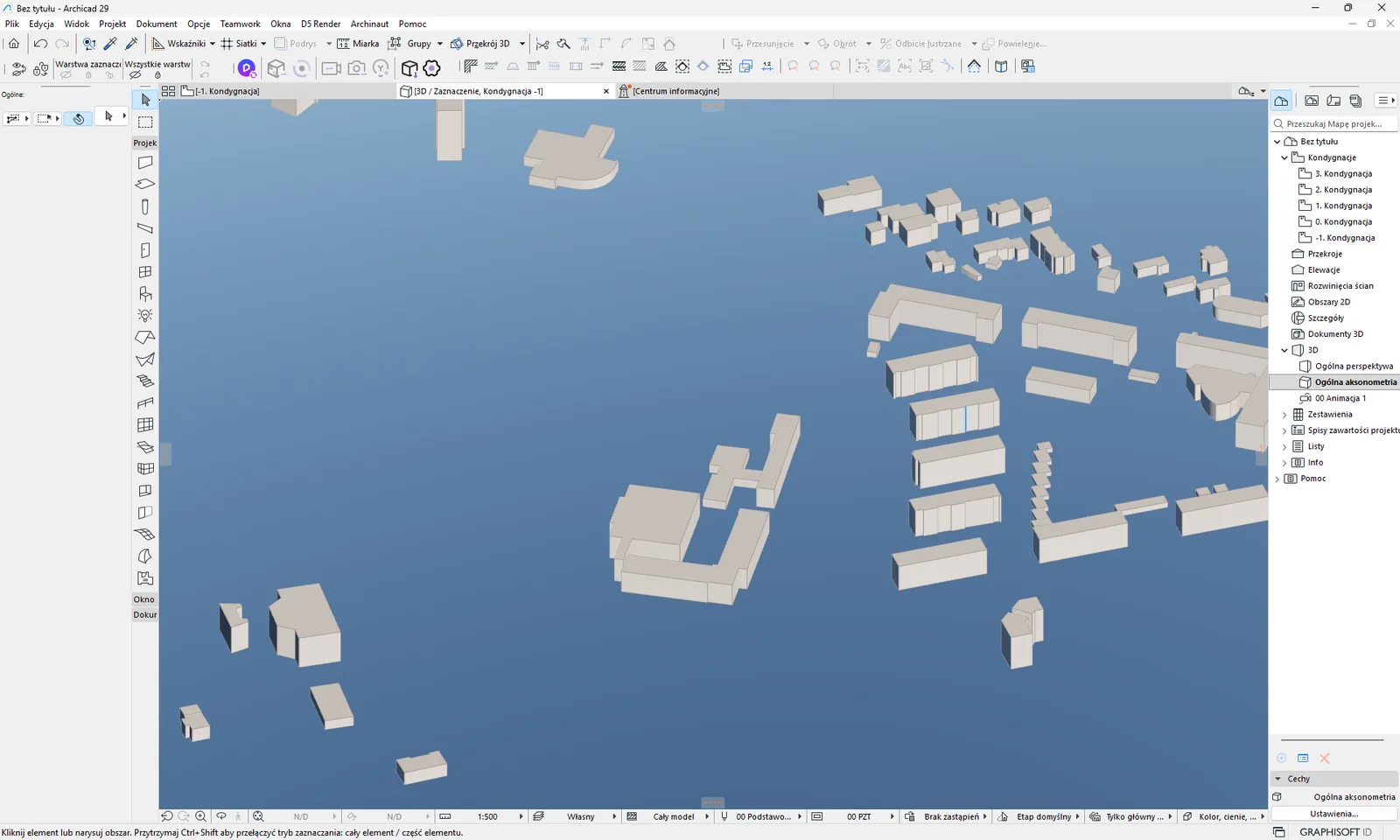
Where the data comes from. From the 3D building models of the Head Office of Geodesy and Cartography (GUGiK), delivered as data packages per county (powiat). The add-on tries the years 2024, 2022, 2021 and 2019 in turn and takes the first one that is available. At the time of checking, the 2024 edition covered all 380 counties. The county is determined from the center of the frame.
How to use it. Tick Budynki 3D (LOD1 - bryły) (3D buildings, LOD1 - volumes), which is off by default. The add-on downloads the whole county package, so the first download can take a while. The progress bar shows megabytes, and you can click Anuluj (Cancel). Downloaded files stay in the cache on your disk, so importing the same area again does not download them again.
What ends up in the project
| Archicad layer | Element type | Notes |
|---|---|---|
GIS_BUDYNKI_3D | Slab | The Slab thickness is the building height. The bottom sits on the ground level of the building, in the project's height system. The building identifier from the data is saved in the element's "ID" field. |
Limits and tips
- Buildings with fewer than three outline points or with zero height are skipped and counted as skipped.
- 3D heights from one import go to the project's shared zero level - how the add-on chooses it.
- When you tick LOD1 and LOD2 in one import, the LOD1 volume is placed only where LOD2 is missing - see LOD2.
- Messages: „Modele 3D: brak paczki dla powiatu <TERYT4>.” (3D models: no package for the county) when the county has no package, and after an archive error - „Uszkodzona paczka zostala usunieta z cache - sprobuj ponownie.” (The damaged package was removed from the cache - try again.).
For the curious
The packages in CityGML format come from the file server opendata.geoportal.gov.pl (the "Budynki3D/LOD1" directory). LOD1 is a model with a flat roof at a constant height. The add-on builds it as a Slab with its reference plane on the bottom.
Related: LOD2 buildings, 2D buildings, 3D terrain. Having a problem? See the messages.
LOD2 buildings #
In short: you get buildings with real roof shapes, each as a single Morph. This model is more detailed than LOD1, but it is available only in part of the country.
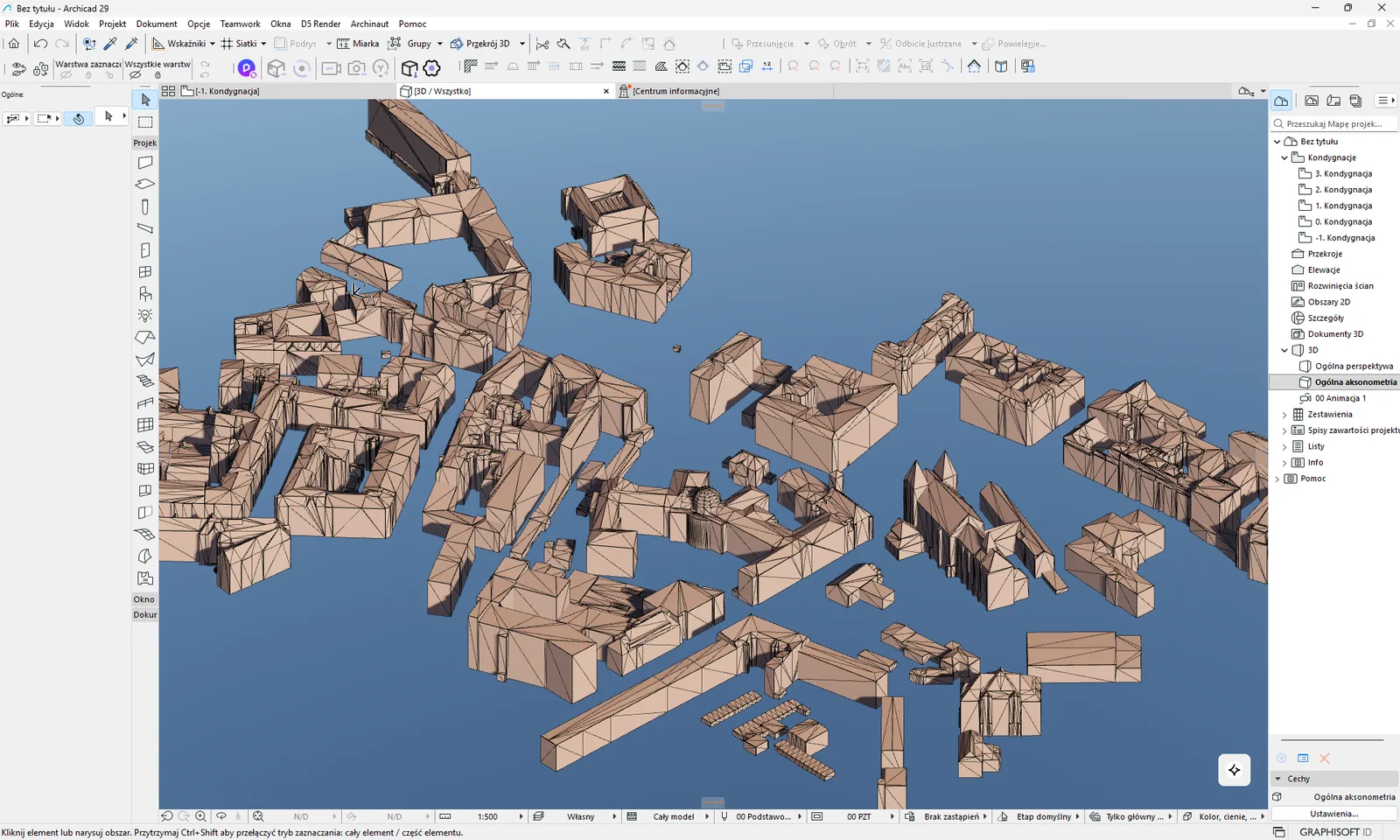
Where the data comes from. From the GUGiK 3D building models (data packages with LOD2 per county). Coverage is partial: the add-on reports about 236 of 380 counties. Even in counties that have a package, not every building is in the data. The county is determined from the center of the frame.
Poznań. In Poznań the LOD2 buildings do not come from GUGiK but from the city's 3D model (Miasto Poznań / GEOPOZ). The add-on chooses it by the position of the frame center. When the frame extends beyond the city, only buildings within the Poznań boundary are created. The import report then ends with the sentence "Źródło: Miasto Poznań / GEOPOZ." (Source: City of Poznań / GEOPOZ).
How to use it. Tick Budynki 3D (LOD2 - bryła + dach) (3D buildings, LOD2 - volume + roof), which is off by default. Downloading works as for LOD1: the whole county package, progress in megabytes, a Anuluj (Cancel) button.
What ends up in the project
| Archicad layer | Element type | Notes |
|---|---|---|
GIS_BUDYNKI_LOD2 | Morph | One Morph per building, with the roof and walls. The building identifier is saved in the "ID" field. |
Limits and tips
- When the frame has no LOD2 buildings, you see „Brak budynkow LOD2 dla tego obszaru (pokrycie GUGiK ~236/380 powiatow).” (No LOD2 buildings for this area (GUGiK coverage ~236/380 counties).). The other ticked layers import normally.
- LOD1 together with LOD2. When you tick both in one import, the LOD2 building wins. The LOD1 volume is placed only where LOD2 does not have that building. This way you do not get two volumes in the same place. It works only within one import. If you import LOD2 and later import LOD1 separately, the add-on places all the LOD1 buildings, because it does not check elements already in the project. So take both kinds of buildings in one import.
- Roofs can be geometrically complex. The add-on builds each building with one of three methods, from the cleanest to a fallback, so that no building drops out of the import.
- Heights are corrected to the shared height system by a constant offset (see the box below).
For the curious
The GUGiK LOD2 data has heights in an older height system. The add-on adds a constant +0.15 m to match them to the terrain in the PL-EVRF2007-NH system. Building identifiers are compared case-insensitively, because the same building can be written in lower case in LOD1 and in upper case in LOD2.
Related: LOD1 buildings, data coverage. Having a problem? See the messages.
Bridges and viaducts #
In short: you get bridges and viaducts as 3D solids: the carriageway, the footway and the railing as separate parts. The shape of the deck is rebuilt from the point cloud, and the location of the bridge comes from OpenStreetMap.
Where the data comes from. Three sources. The position of the bridge axis comes from OpenStreetMap (the location of objects tagged as a bridge). The add-on rebuilds the deck, traffic lanes, railings and structure thickness from the GUGiK point cloud (airborne laser scanning). The terrain under the bridge comes from the GUGiK digital terrain model (NMT). Coverage is all of Poland wherever there is a point cloud and the bridge is in OpenStreetMap, but quality depends on the cloud (cars and trees near the bridge can disturb it).
How to use it. Tick Mosty i wiadukty (LiDAR) (Bridges and viaducts (LiDAR)), which is off by default. This option downloads point cloud tiles, each tens of megabytes or more, so the import takes longer. The add-on downloads the terrain model it needs on its own - you do not have to tick 3D terrain. When the terrain model for the bridge area is missing, bridges are skipped and you see „Mosty: brak NMT dla obszaru mostow - pominiete.” (Bridges: no NMT for the bridge area - skipped.).
What ends up in the project
| Archicad layer | Element type | Notes |
|---|---|---|
GIS_MOSTY | Morph (carriageway) | Material „GIS Most - jezdnia” (GIS Bridge - carriageway). |
GIS_MOSTY | Morph (footway) | Material „GIS Most - chodnik” (GIS Bridge - footway). |
GIS_MOSTY | Morph (railing) | Material „GIS Most - balustrada” (GIS Bridge - railing). A solid panel 0.1 m thick, without balusters. |
Each part of the bridge is a separate, closed Morph. The add-on handles road, railway, tram, and pedestrian and cycle bridges.
Limits and tips
- The frame for bridges cannot exceed about 5 × 5 km. Above that: „Mosty/drogi (OSM): kadr za duzy - przybliz mape (max ok. 5x5 km).” (Bridges/roads (OSM): frame too large - zoom the map in (max about 5x5 km).).
- The add-on downloads at most 16 point cloud tiles. For a larger area you see „Mosty: obszar mostow wymaga N kafli LiDAR (limit 16) - przybliz mape.” (Bridges: the bridge area needs N LiDAR tiles (limit 16) - zoom the map in.). A bridge that extends beyond the frame is built in full, up to 75 m beyond the frame along its axis.
- Bridges ticked together with 3D streets share the point cloud download. Streets are cut out within the outline of the bridge deck, so that they do not overlap.
- OSM lines that cover an already built deck are skipped as the same structure. If no bridge was created, the progress bar reports the numbers of built, skipped and rejected objects.
- Cars standing on the bridge and trees can disturb the deck edges, because the shape comes from the point cloud. After the import, check the geometry in 3D.
For the curious
The bridge query goes to the Overpass API server (OpenStreetMap), with two backup servers. The cloud is GUGiK LiDAR data, in the PL-EVRF2007-NH height system. The bridge axis is extended by 40 m at each end to rebuild the approaches.
Related: 3D streets, 3D terrain, Point cloud. Having a problem? See the messages.
3D streets #
In short: you get carriageways and footways as 3D Meshes with real slopes and a step at the curb. The feature works in 76 areas.
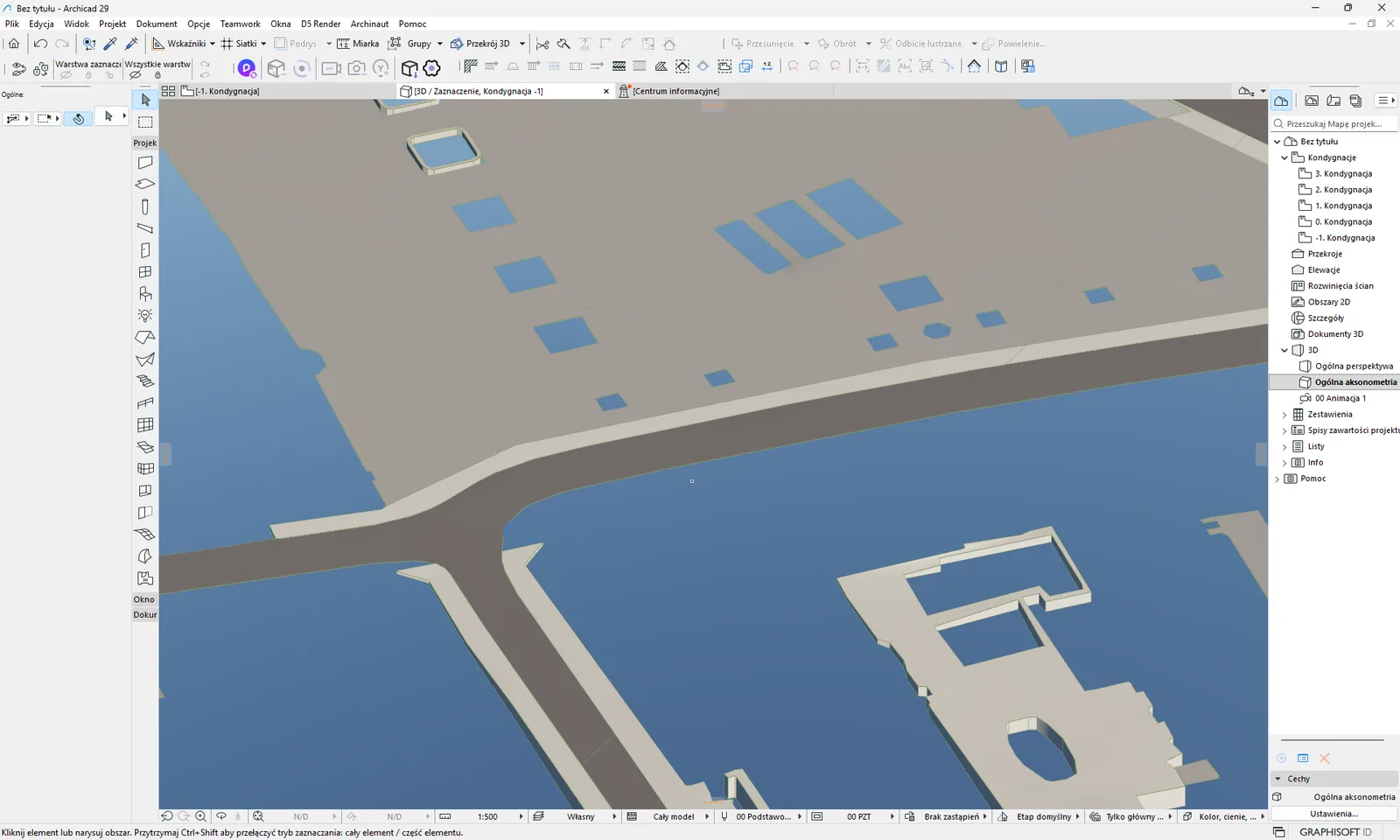
Where the data comes from. The shape (outlines of carriageways, footways and other surfaces) comes from the BDOT500 base map (the large-scale topographic database), and the heights from the GUGiK point cloud. Where there is no cloud, the add-on takes heights from the digital terrain model (NMT). The feature works only in areas where the BDOT500 server can return object classes separately. Full list: archinaut.pl/ulice-zasieg.html.
How to use it. Tick Ulice 3D (BDOT500) (3D streets (BDOT500)), which is off by default. Ticking it turns on the carriageway and the footway together. Four additional options become available below it, ticked by default - see additional options. The frame cannot be larger than 1 km2.
What ends up in the project
| Archicad layer | Element type | Notes |
|---|---|---|
GIS_ULICE_JEZDNIA | Mesh | Material „GIS Ulice - jezdnia” (GIS Streets - carriageway). |
GIS_ULICE_CHODNIK | Mesh | Material „GIS Ulice - chodnik” (GIS Streets - footway). It has a flat bottom 0.2 m below, so that the face of the curb is visible. |
A Mesh is created for each piece of a surface (an outline with holes and height points). Layers are created only at the first element of a given class.
Limits and tips
- The frame is up to 1 km2. Above that: „Ulice 3D: zmniejsz kadr do 1 km²” (3D streets: reduce the frame to 1 km²).
- The pixel size depends on the frame: up to 0.36 km2 it is 0.1 m, up to 1 km2 it is 0.2 m (no more than the server limit for the given area).
- Surfaces with a perimeter above 400 m are split by a 100 m grid into separate pieces. So a street can consist of many Meshes. The add-on deliberately does not join them into one element.
- Very small surfaces (below 1 m2) are merged with their neighbors.
- The add-on downloads at most 16 point cloud tiles. When the area needs more, or the cloud is missing, the streets are created with heights from the NMT and you see „Ulice 3D: brak chmury LiDAR, wysokości z NMT (krawężniki niewidoczne w 3D)” (3D streets: no LiDAR cloud, heights from the NMT (curbs not visible in 3D)).
- Under bridges in BDOT500, the streets are cut out, and with Bridges ticked, also within the outline of the deck.
- Outside the list of areas: „W powiecie ... ulice 3D są niedostępne (serwer BDOT500 nie pozwala pobrać klas osobno). Lista powiatów: archinaut.pl/ulice-zasieg.html” (In the county ... 3D streets are unavailable (the BDOT500 server does not allow downloading classes separately). List of counties: archinaut.pl/ulice-zasieg.html). When the server does not respond: „Serwer BDOT500 ... nie odpowiada, spróbuj później” (The BDOT500 server ... is not responding, try later).
- Curbs in 2D are a separate option: BDOT500 - lines. 3D streets do not create curbs as lines.
- Check the result in 3D before you build your project on it.
For the curious
The BDOT500 classes come from WMS services with the SLD parameter, which lets you download each object code separately: carriageway OTKJ, footway OTKC, paved areas OTKU, cycle path OTKG, stairs OTKS, retaining wall OTDN. Bridges OTKM, OTKW and OTKE are used for cutting. The Mesh ridge mode is "user ridges sharp" (Grzbiety uzytkownika ostre).
Extra options: parking, bike lanes, stairs, small walls #
The four sub-options are indented under Ulice 3D (BDOT500), ticked by default; they apply only while Ulice 3D (BDOT500) is ticked. When you untick the main option, they are grayed out and are not downloaded, even if they have a tick.
| Palette option | Layer | Element type | Notes |
|---|---|---|---|
| „+ Obszary utwardzone (parkingi, place)” (+ Paved areas (car parks, squares)) | GIS_ULICE_PARKING | Mesh | Material „GIS Ulice - parking” (GIS Streets - car park). |
| „+ Drogi rowerowe” (+ Cycle paths) | GIS_ULICE_ROWER | Mesh | Material „GIS Ulice - rower” (GIS Streets - cycle path). |
| „+ Schody” (+ Stairs) | GIS_ULICE_SCHODY | Mesh | Material „GIS Ulice - schody” (GIS Streets - stairs). Stairs will not appear in every frame. |
| „+ Murki” (+ Small walls) | GIS_ULICE_MURKI | Mesh (strip) | A strip with a continuous top edge, material „GIS Ulice - murek” (GIS Streets - small wall). Segments shorter than 0.2 m are skipped. |
Small walls are not available in areas whose server does not provide the structures layer. In that case the add-on does not show a separate message.
Related: BDOT500 - lines, Bridges, data coverage. Having a problem? See the messages.
3D trees (GUGiK) #
In short: you get individual trees as light library objects: in plan a crown circle with a small trunk circle, in 3D a ball-shaped crown. Each tree has its height from the data, so you see at once where it grows and how big it is.
Where the data comes from. From the GUGiK dataset "3D tree models" (Modele 3D drzew) from 2023 (license CC BY 4.0, © GUGiK). The data was processed by Archinaut (reduced to position, terrain height and tree height). The data is meant to cover about 307 of the 380 counties (we are preparing it gradually) - the counties available right now are shown on the coverage map. In 73 counties GUGiK has no such data. These are mostly rural counties in the kujawsko-pomorskie, lubuskie, pomorskie and zachodniopomorskie voivodeships and part of dolnośląskie. You can see the current coverage map at archinaut.pl/drzewa-zasieg.html. The "mapa zasięgu" (coverage map) link is also next to the option in the palette.
How to use it. In the 3D group tick Drzewa 3D (GUGiK) (off by default). The frame can be at most about 10 × 10 km, and the frame can contain at most 30,000 trees.
What goes into the project
| Archicad layer | Element type | Notes |
|---|---|---|
GIS_DRZEWA | Object "Archinaut drzewo" | The add-on creates this object itself in the project's embedded library. You can change the layer name in the "Target layers" window ("Warstwy docelowe"). |
What the trees look like
- In plan (2D) a tree is a crown circle and a small trunk circle.
- In 3D the crown is a ball whose top lies exactly at the tree height. Its diameter is about 0.534 of the tree height. The trunk is off by default.
- Trees stand at the terrain height from the GUGiK data, in the same height system as the NMT terrain.
Trunk and light geometry. The object settings have two parameters: Pień (Trunk, off by default) and Lekka geometria (Light geometry, on by default, a low-resolution ball). You can change them also for many selected trees at once. With a large number of trees keep the light geometry, so the 3D model stays smooth.
Swapping for your own trees. The object uses the standard Archicad parameters: A and B are the crown width, ZZYZX is the height. So you can select all the trees, open the object settings and pick another object from your own library. The size and position of the trees are kept.
Limits and tips
- Above 30,000 trees in the frame no tree is created: „Drzewa 3D: w kadrze jest ponad 30000 drzew (limit 30 000) - zmniejsz kadr.” (3D trees: the frame contains N trees (limit 30,000) - reduce the frame).
- A frame larger than about 10 × 10 km: „Drzewa 3D: kadr za duży (najwyżej ok. 10 × 10 km) - zmniejsz kadr.” (3D trees: the frame is too large (at most about 10 × 10 km) - reduce the frame).
- A county without tree data: „Drzewa 3D: brak danych drzew dla tego powiatu - zasięg: archinaut.pl/drzewa-zasieg.html” (3D trees: no tree data for this county - coverage: archinaut.pl/drzewa-zasieg.html). When the data exists but the frame has no trees: „Drzewa 3D: brak drzew w kadrze.” (3D trees: no trees in the frame). In counties we are still preparing you may see either of these two messages - check the coverage map then.
- When the add-on cannot create the tree object (e.g. in a Teamwork project without a reserved library), the import shows the warning „Drzewa 3D: nie udało się utworzyć obiektu drzewa (kod N) - drzewa pominięte.” (3D trees: could not create the tree object (code N) - trees skipped) and skips the trees.
- When some tiles fail to download you see „Drzewa 3D: nie udało się pobrać N kafli.” (3D trees: N tiles could not be downloaded). Then try again.
- 3D heights from one import go to the project's common zero level - how the add-on picks it.
For the curious
The data is split into 1 × 1 km tiles hosted on archinaut.pl. A missing tile means no trees in that square. The crown is an ellipsoid with horizontal semi-axes A/2 and B/2 and a vertical semi-axis equal to half the smaller of A and ZZYZX. With the proportions the add-on sets, it is a ball. The trunk radius is 3.5% of the height.
Related: 3D terrain, data coverage. Having a problem? See the messages.
3D terrain #
In short: you get the terrain surface as Archicad Meshes from the digital terrain model. It works well as a base under buildings and for sections.
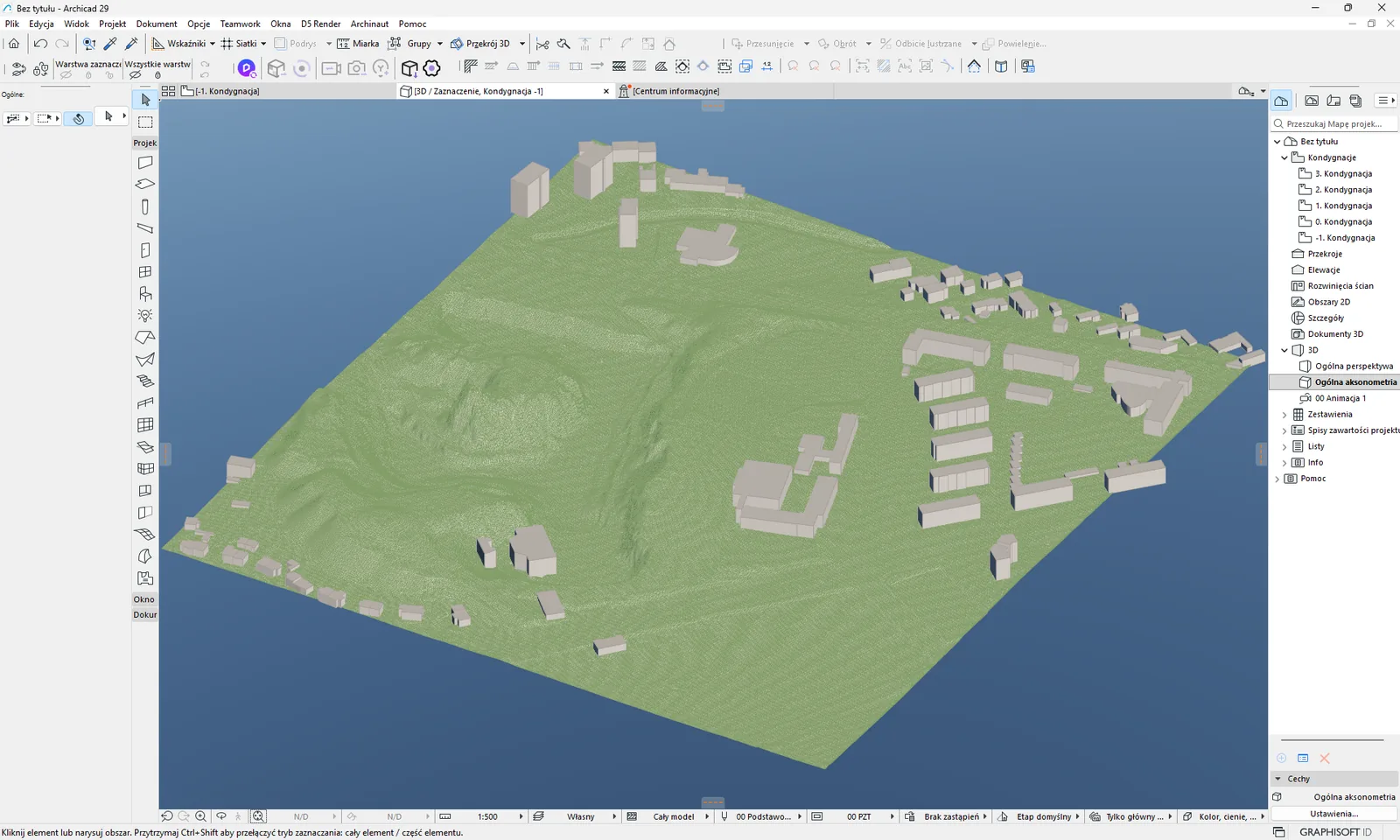
Where the data comes from. From the GUGiK digital terrain model (NMT). The model has a height grid of about 1 m. Coverage is all of Poland wherever the NMT exists. When tiles are missing, you see the message „Teren: brak kafli NMT...” (Terrain: no NMT tiles...).
How to use it. Tick Teren 3D (NMT - Siatka) (3D terrain (NMT - Mesh)), which is off by default. An options box with the krok siatki (grid step) option appears under the layer - see terrain step.
What ends up in the project
| Archicad layer | Element type | Notes |
|---|---|---|
GIS_TEREN | Mesh | Split into tiles, each up to 200 × 200 nodes. Triangulation lines are hidden. The terrain is built on a PL-2000 grid: tiles are rectangles in PL-2000 (in the project they are rectangles, rotated only if the project north is rotated). |
Neighboring tiles share a row of nodes, so the terrain has no gaps.
Limits and tips
- The add-on assembles the terrain from at most 4 × 4 tiles, which limits the frame to about 800 m at a 1 m step, about 1600 m at a 2 m step and about 4 km at a 5 m step. For a larger frame you see a warning, and the terrain covers only part of the frame.
- Terrain from the NMT is the first source of the project's shared zero level - georeferencing.
- If the tiles do not download: „Teren: nie udalo sie pobrac/sparsowac zadnego pliku NMT.” (Terrain: could not download/parse any NMT file.). If there are no valid points in the frame: „Teren: brak waznych punktow NMT w kadrze.” (Terrain: no valid NMT points in the frame.).
- You can compare terrain from the NMT with terrain from the point cloud, which sits on a separate layer.
Terrain step #
The krok siatki (grid step) option in the options box under NMT terrain has the values 1 m (default), 2 m and 5 m. A smaller step gives more accurate terrain, but reduces the maximum frame (see above). The step applies only to NMT terrain. Contours from the NMT have their own step, and terrain from the point cloud has its own setting.
Related: Terrain from point cloud, Contours, Georeferencing. Having a problem? See the messages.
Terrain from point cloud #
In short: you get terrain built directly from the ground points of the point cloud. It is created on a separate layer, so you can compare it with the terrain from the NMT.
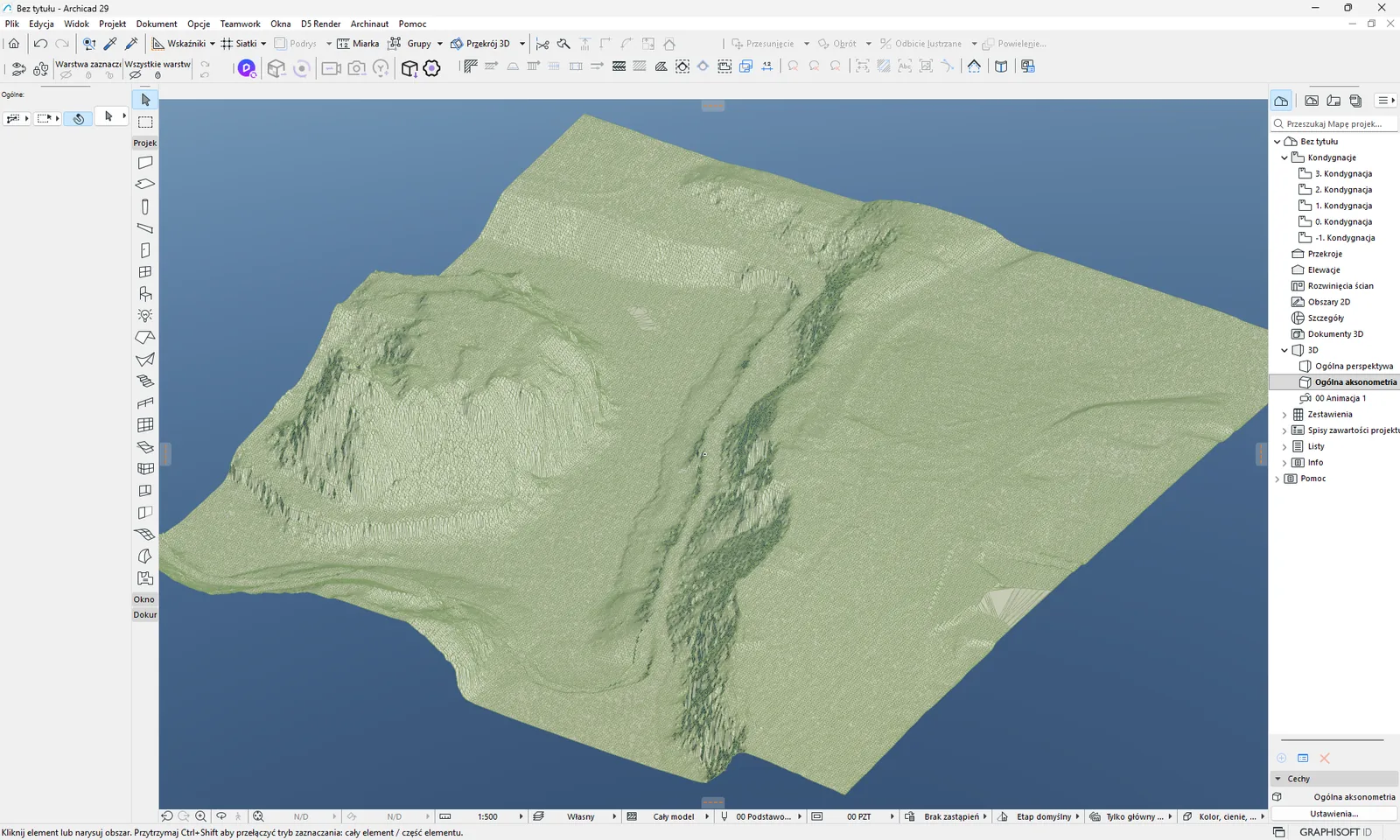
Where the data comes from. From the GUGiK point cloud: the add-on takes only the points classified as ground and calculates a height grid from them (the median in each cell). Coverage is everywhere there is a cloud with ground marked. When it is missing: „Teren z chmury: brak punktow gruntu (klasa 2) w kadrze.” (Terrain from cloud: no ground points (class 2) in the frame.).
How to use it. Tick Teren z chmury (LiDAR) (Terrain from point cloud (LiDAR)), which is off by default. Reading the cloud takes longer than terrain from the NMT, because large tiles are downloaded. The grid is set by the krok siatki (grid step) option in the options box under this layer - see step.
What ends up in the project
| Archicad layer | Element type | Notes |
|---|---|---|
GIS_TEREN_CHMURA | Mesh | Like terrain from the NMT. A separate "for comparison" layer, the NMT is not changed. |
Limits and tips
- The grid has at most 800 nodes per axis. If the frame is larger than the chosen step allows, the add-on increases the step by itself and tells you: „Teren z chmury: kadr duzy dla kroku X m - krata zgrubiona do Y m (limit 800 wezlow/os). Zmniejsz kadr dla drobniejszej kraty.” (Terrain from cloud: frame large for a step of X m - grid coarsened to Y m (limit 800 nodes/axis). Reduce the frame for a finer grid.). Without coarsening, a frame fits up to about 400 m (step 0.5 m), 800 m (step 1 m) and 1600 m (step 2 m).
- Heights are in the same height system as terrain from the NMT, without any extra correction.
- The grid of the same cloud is also used by contours from the point cloud, so when you tick both, the cloud is downloaded once.
For the curious
Heights are in the PL-EVRF2007-NH system. The add-on takes class 2 (ground) points from LAZ files and reads them as a stream to save memory. After the import, the summary shows the number of tiles, ground points and cells.
Point cloud terrain step #
The krok siatki (grid step) option in the options box under terrain from the point cloud has the values 0.5 m, 1 m (default) and 2 m. A smaller step is more accurate, but slower and covers a smaller frame. The step applies only to terrain from the point cloud. Contours from the point cloud have their own step. When you tick both, the ground grid from the cloud is calculated at the finer of the two steps.
Related: 3D terrain, Contours from point cloud, Point cloud. Having a problem? See the messages.
Contours #
In short: you get terrain contour lines. You can have them as 2D lines with elevation labels, as a 3D Mesh built from the contours, or as a 3D Mesh calculated from the point cloud.
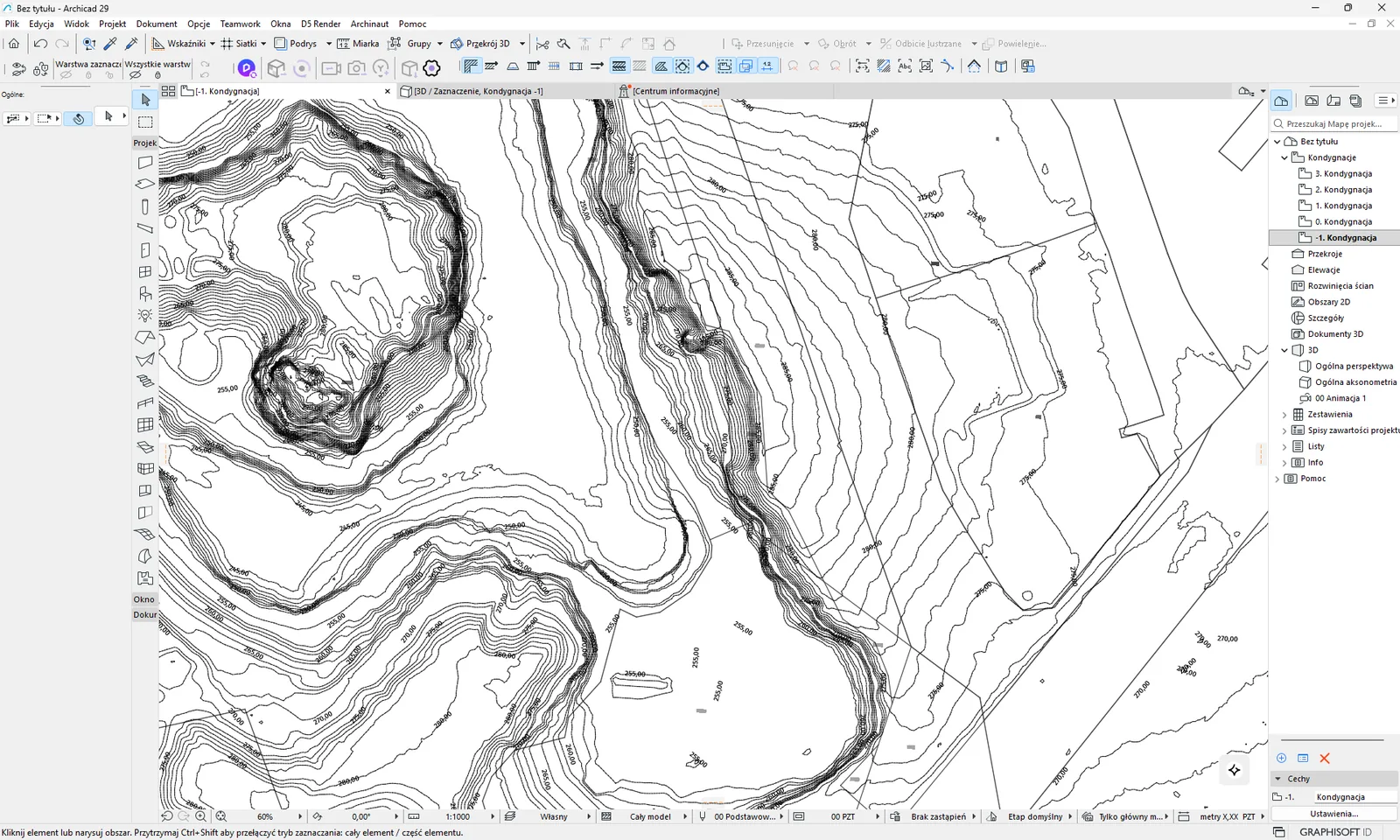
Where the data comes from. From the GUGiK digital terrain model (2D and 3D contours) or from the point cloud (contours from the point cloud). Contours are calculated over the whole frame at once, not in tiles, so they have no seams.
How to use it. Tick one or more options from the contours group, choose the krok (step) and cięcie (interval) in the options box under the contours (see below) and optionally wygładzaj (smooth). During the calculation you can click Anuluj (Cancel).
Common limits
- The add-on calculates at most 3000 contours and 600,000 vertices. When this is exceeded, the result is cut off with a warning.
- The sampling step of contours from the NMT is their own krok (step) of 1, 2 or 5 m, but the add-on coarsens it so that the grid has at most 3000 nodes per axis (at a 1 m step this means a frame of about 3 km).
- When you cancel the calculation: „Poziomice: przerwano przez uzytkownika.” (Contours: interrupted by the user.).
2D contours #
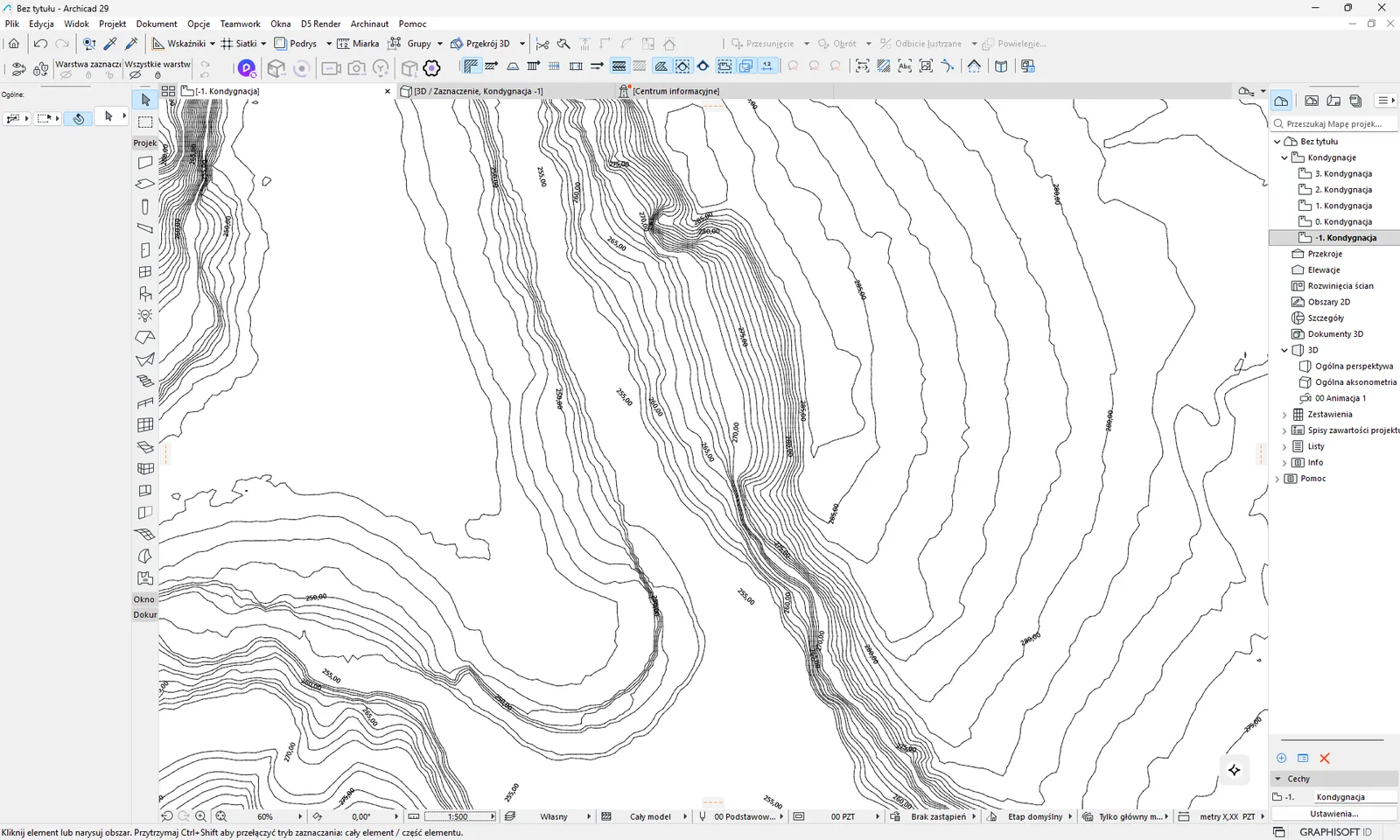
The Poziomice 2D (rysunek + rzędne) (2D contours (drawing + elevations)) option (off by default) draws contours as lines with labeled elevations, from the digital terrain model.
| Archicad layer | Element type | Notes |
|---|---|---|
GIS_POZIOMICE_2D | Polyline | A major contour (every fifth, e.g. every 5 m at a 1 m interval) has pen 2, the others pen 1. |
GIS_POZIOMICE_2D | Text | The elevation with a decimal comma and two decimal places, e.g. 75,25. Text height 2.0 mm, pen 2, the text is rotated along the contour so that it is not upside down. Labels about every 50 m, only on major contours. |
Elevation labels are created only when 2D contours are ticked, not for 3D contours alone. The option does not require ticking the terrain.
3D contours #
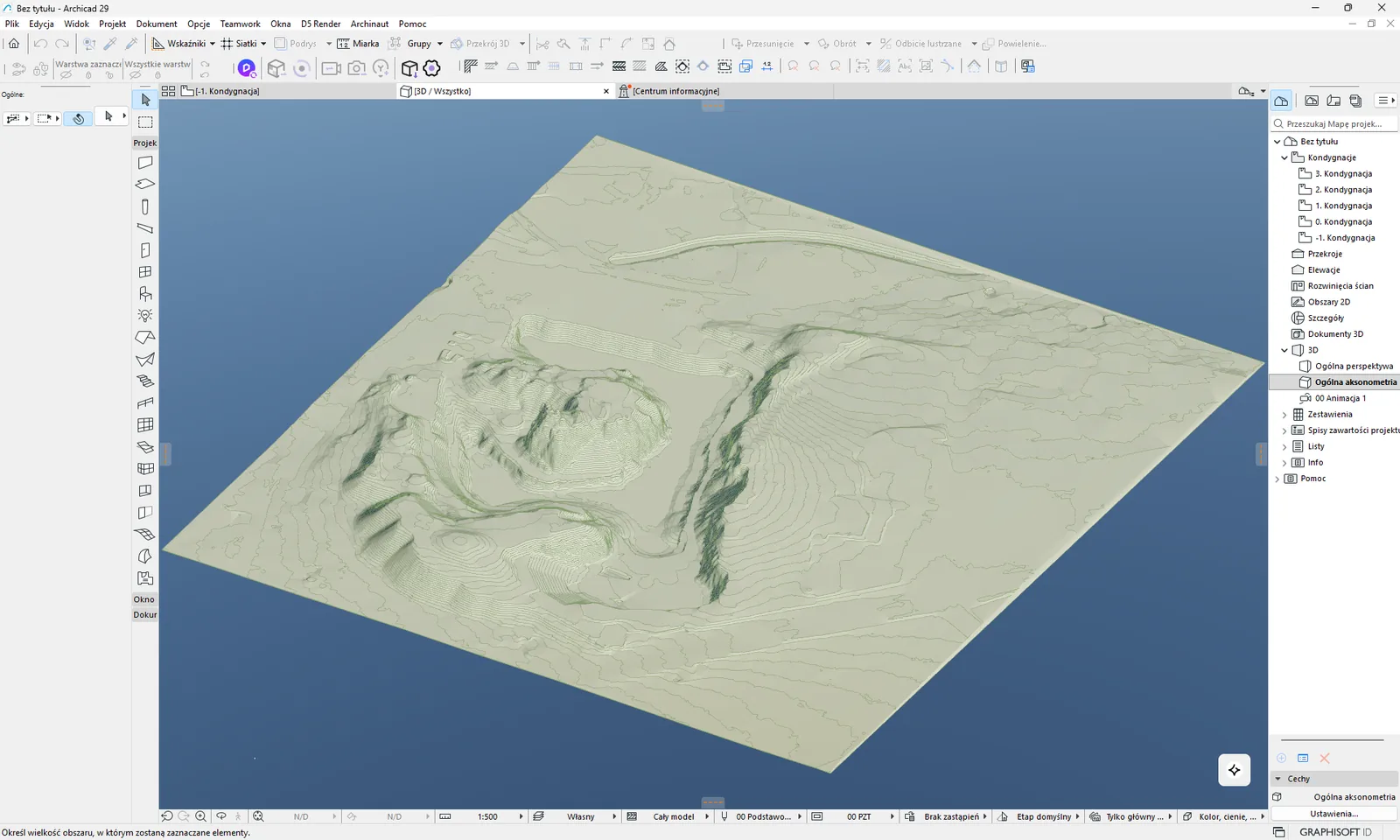
The Poziomice 3D (siatka z warstwic) (3D contours (Mesh from contours)) option (off by default) creates one 3D Mesh for the whole frame from the same contours.
| Archicad layer | Element type | Notes |
|---|---|---|
GIS_POZIOMICE_3D | Mesh | One Mesh for the whole frame. The contour lines are sharp, and the surface between them is smooth. Triangulation lines are hidden. |
The corners of the Mesh outline take the elevation of the nearest contour. If the Mesh cannot be created, the import does not stop, and you see „Poziomice: nie udalo sie utworzyc Siatki 3D z warstwic.” (Contours: could not create a 3D Mesh from the contours.).
Contours from point cloud #
The Poziomice z chmury (LiDAR) (Contours from point cloud (LiDAR)) option (off by default) calculates contours from the ground grid of the point cloud (the same one as in terrain from the point cloud).
| Archicad layer | Element type | Notes |
|---|---|---|
GIS_POZIOMICE_CHMURA_3D | Mesh | One Mesh, as for 3D contours. |
The option uses its own krok (step) of 0.5 / 1 / 2 m from the options box under contours from the point cloud (a limit of 800 nodes per axis with automatic coarsening, plus sampling up to 3000 nodes per axis). It works independently of ticking terrain from the point cloud, but the cloud is then downloaded once. After the import you see a summary with the number of contours and the interval. When the Mesh cannot be created: „Poziomice z chmury: nie udalo sie utworzyc Siatki 3D.” (Contours from cloud: could not create a 3D Mesh.).
Interval and smoothing #
The cięcie (interval) option has the values 25 cm, 50 cm, 1 m (default) and 2 m. A smaller interval gives a more accurate picture of the terrain, but more elements. Contours from the NMT (2D and 3D) and contours from the point cloud each have their own interval, step and smoothing switch, in separate option boxes.
The wygładzaj (smooth) option (off by default) removes steps from the height grid. It works in two ways: it smooths the height field along the contour direction (not across the slope) before the contours are calculated (for contours from the NMT and from the cloud), and additionally simplifies the 2D contour lines. It does not change how Archicad treats the ridges of the 3D Mesh.
For the curious
Field smoothing is directional: it averages heights along the contour direction and only acts where the terrain has a clear slope, so flat terrain is left unchanged. The 2D lines are additionally simplified (redundant vertices are removed, the remaining ones are not moved). After you tick smoothing, the import summary includes a note about the smoothing.
Related: 3D terrain, Terrain from point cloud, Georeferencing. Having a problem? See the messages.